While it would be great if you could just switch on a laptop and it was ready to go, sadly when used in a business environment, there are a few steps that need to be done first.
1. Switch on the laptop, leave it to boot up.
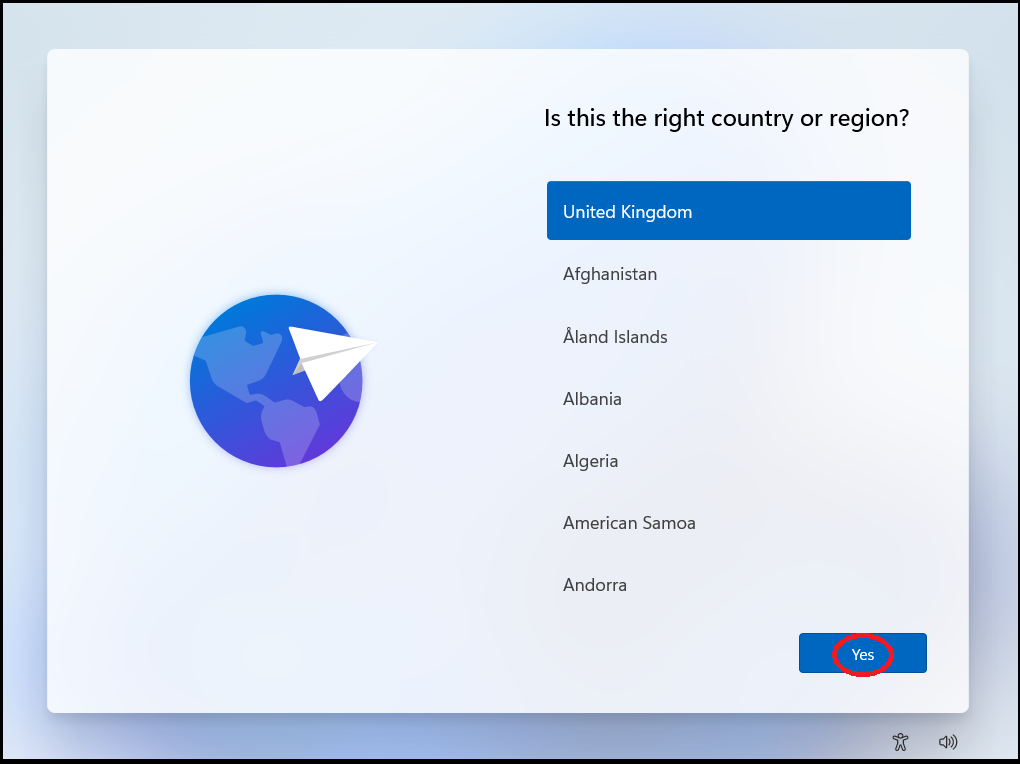
2. Select the correct country/region for where you are, then click on 'Yes'.
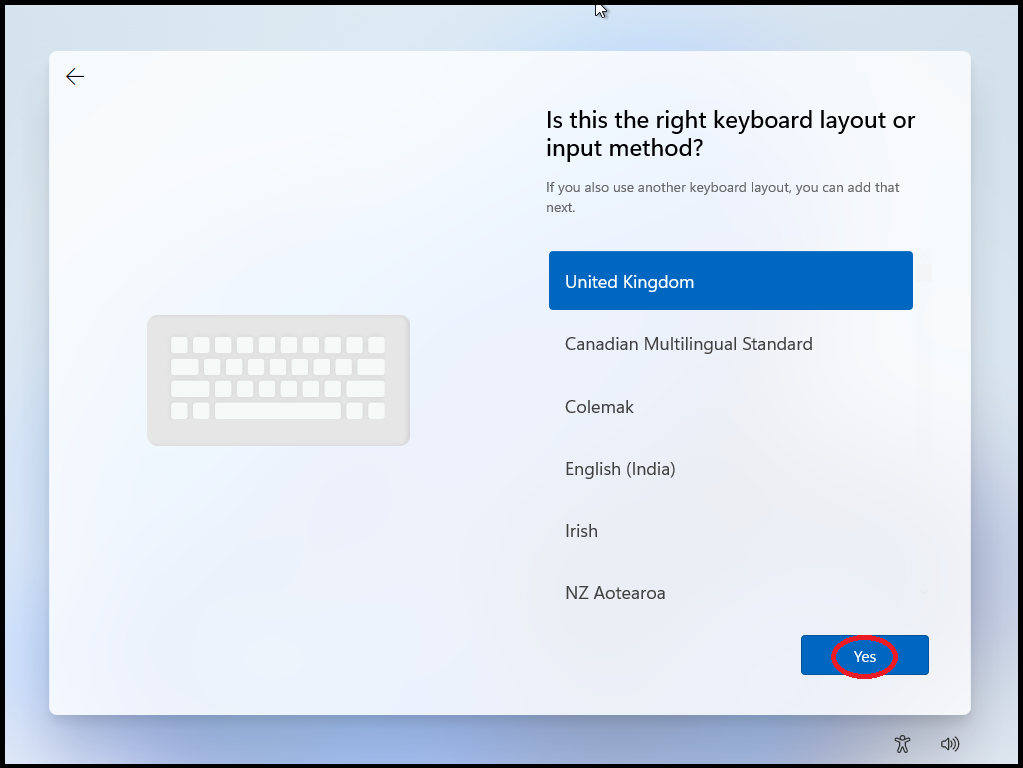
3. Select the correct keyboard layout, then click on 'Yes'.
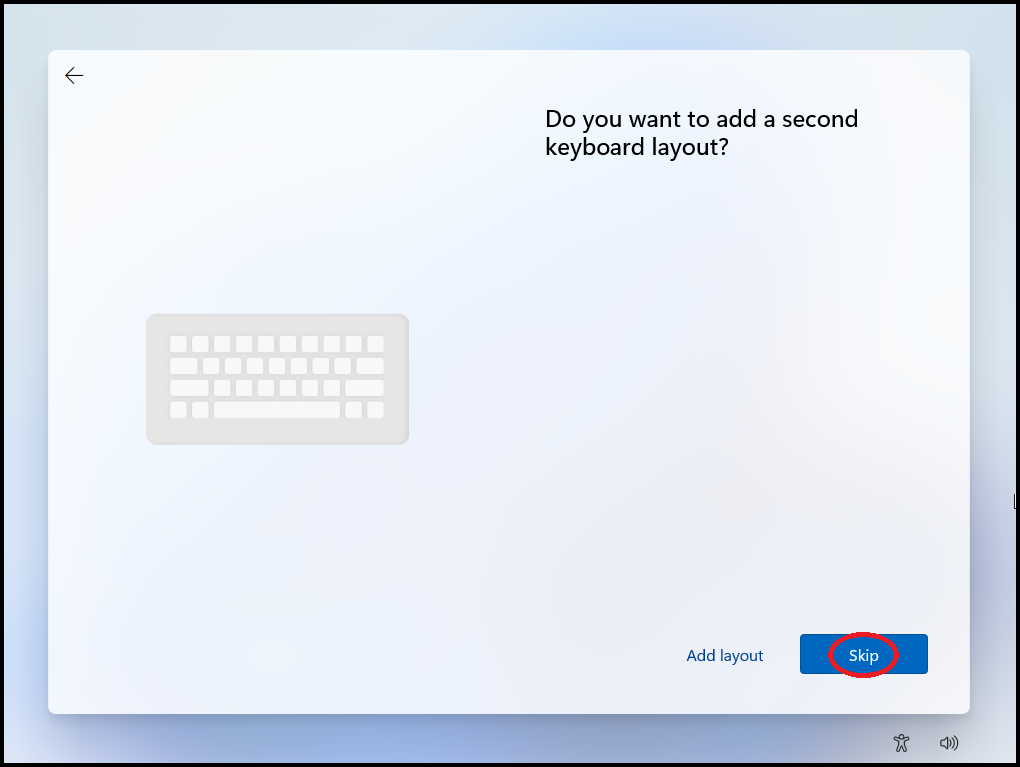
4. Click on 'Skip'.
5. You may be asked to connect to a network. If you are, select your wireless, then enter the password to connect to it. Once connected, click on 'Next'.
If you are not asked to connect to a network, skip to step #6.
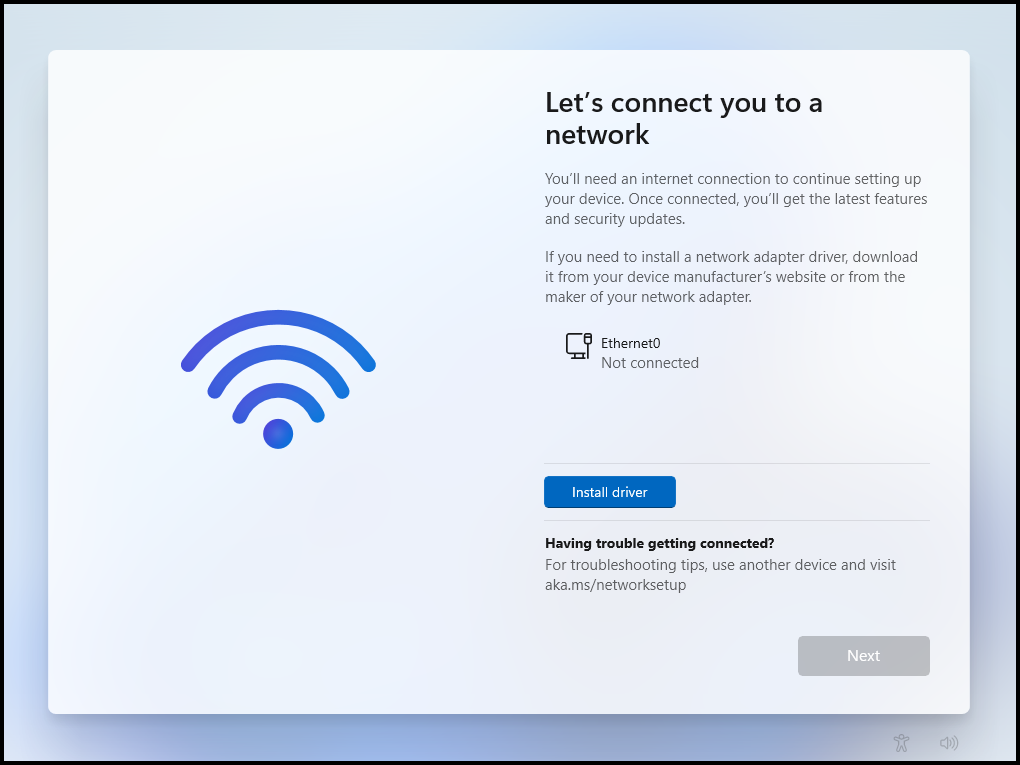
It will now check for Updates. This may take a few seconds, or a few minutes, and also may reboot.
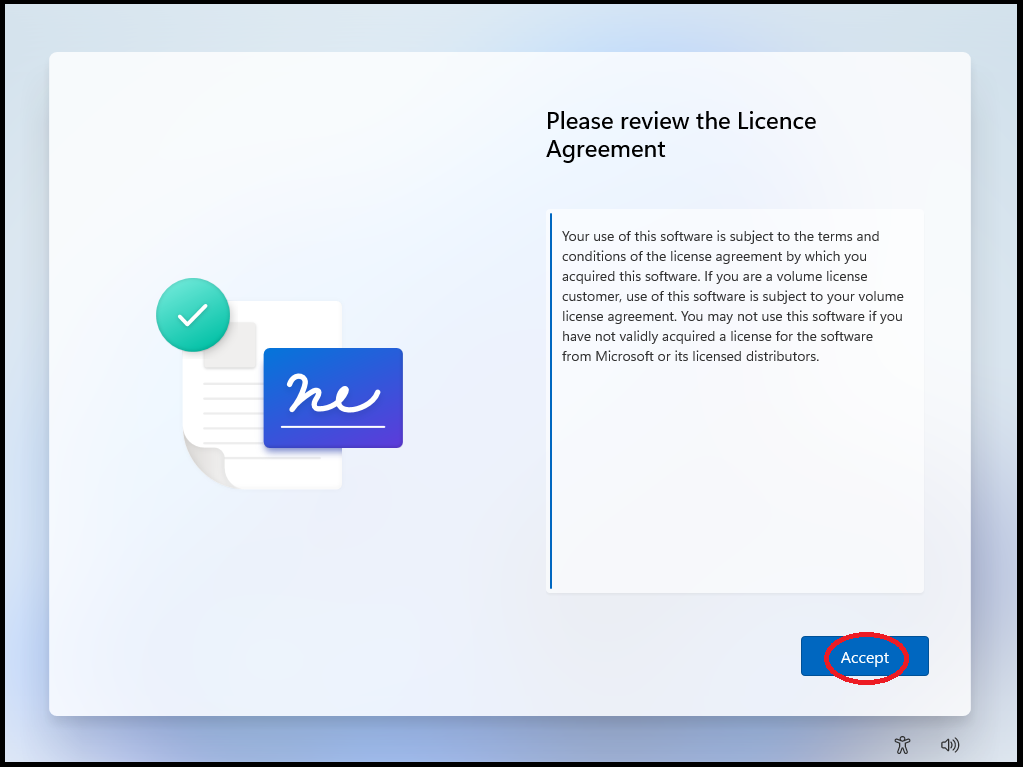
6. Click on 'Accept' for the licence agreement.
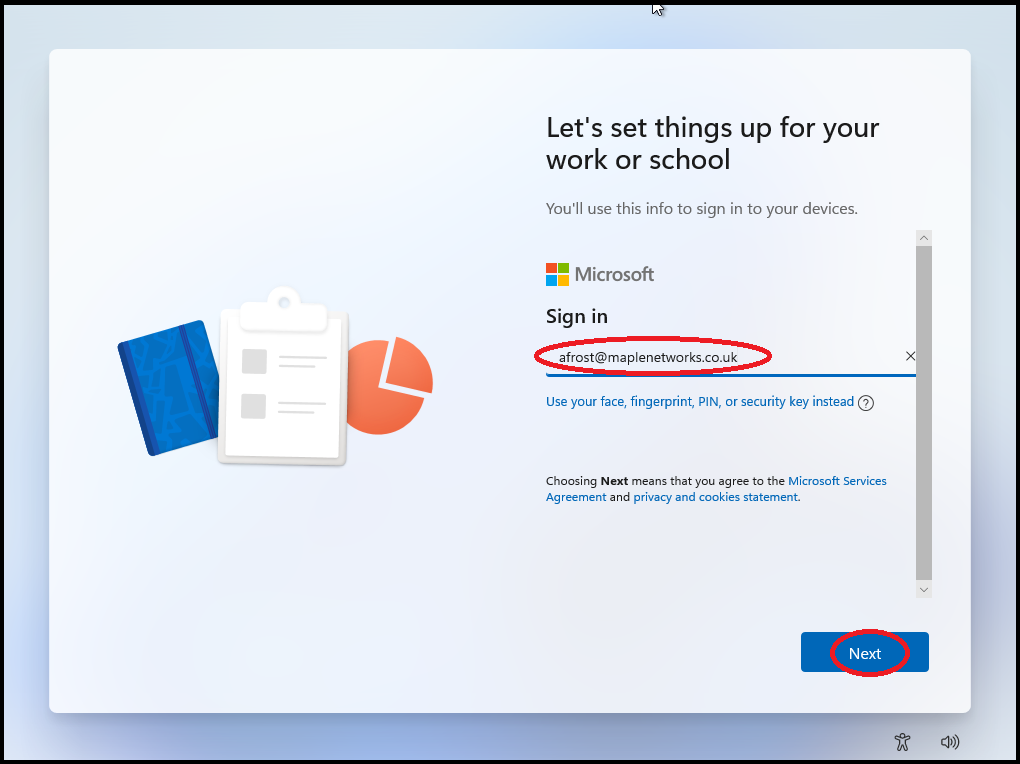
7. Type in your Maple email address, then click on 'Next'.
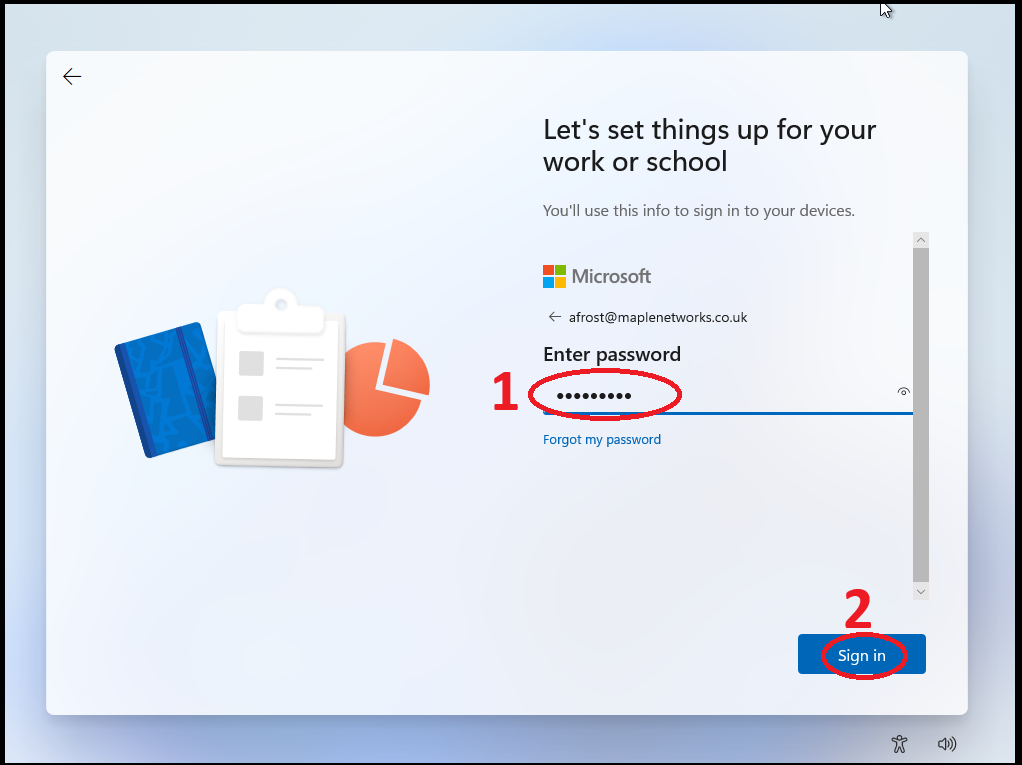
8. Type in your password, then click on 'Sign in'.
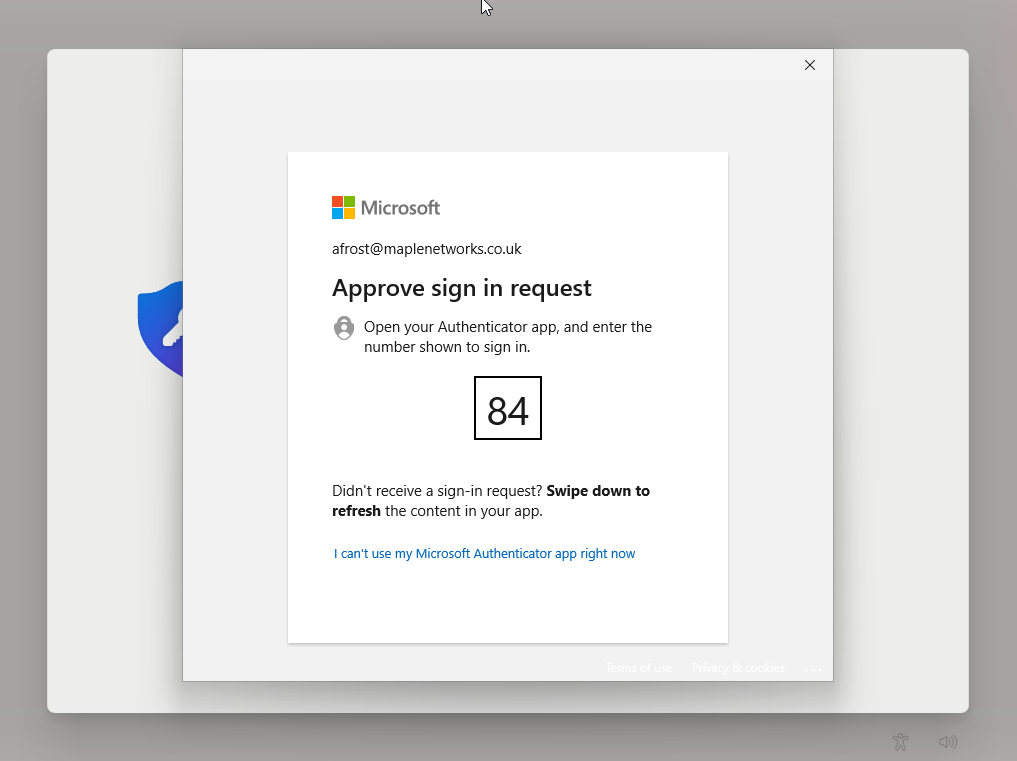
9. MFA will appear showing a 2-digit number. Type this in on your phone, then click on 'Approve' (the Microsoft Authenticator app should automatically load on your phone. If it doesn't, check the notifications on your phone).
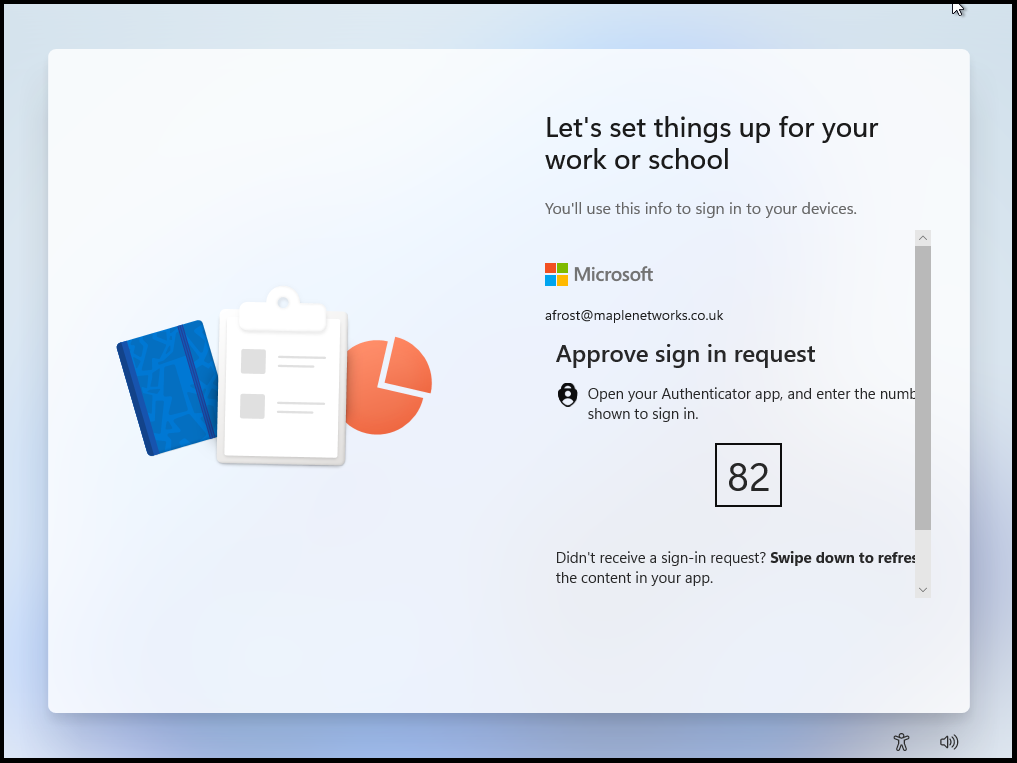
10. Click on 'No', then click on 'Accept'.
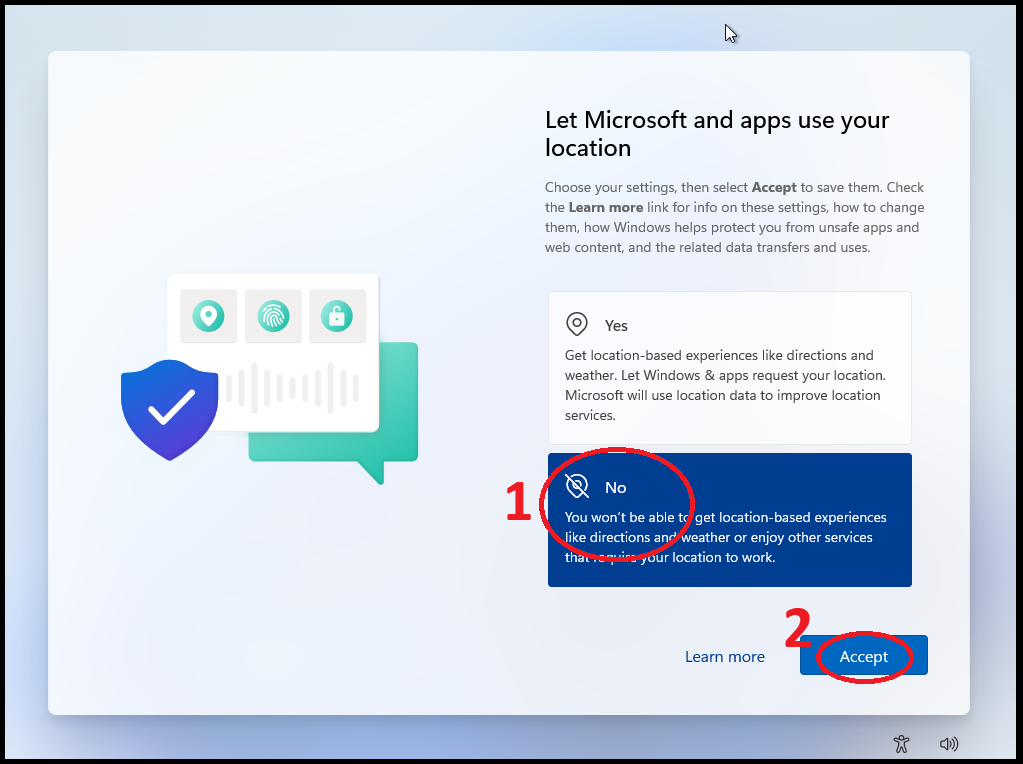
11. Click on 'No', then click on 'Accept'.
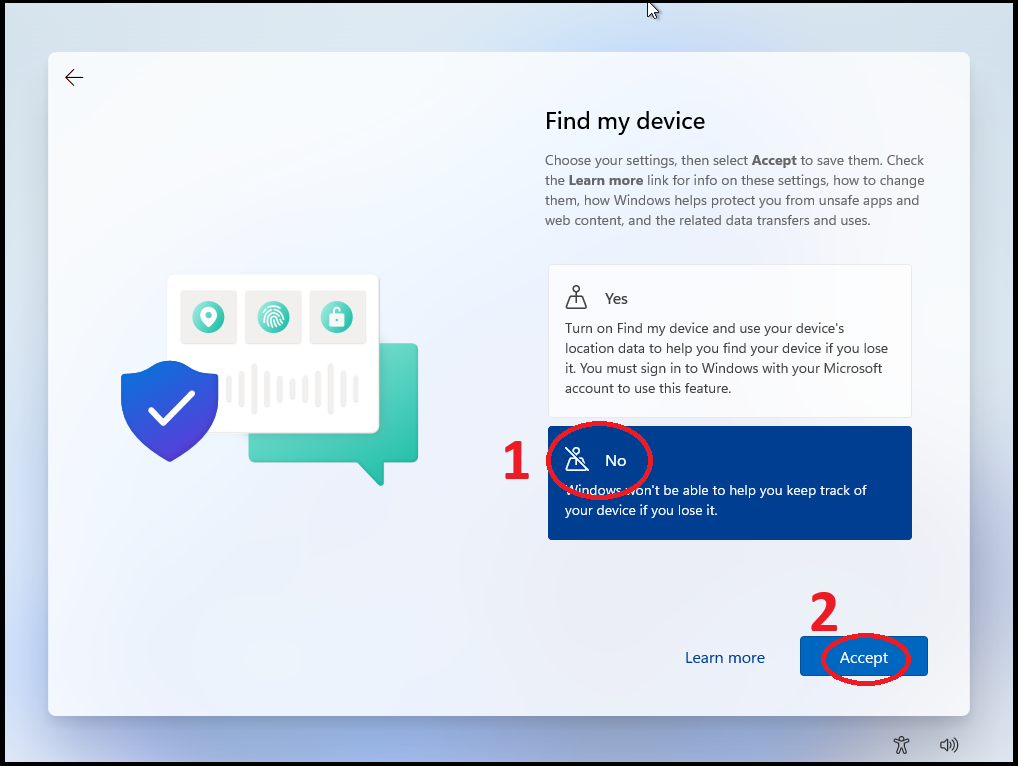
12. Click on 'Required only', then click on 'Accept'.
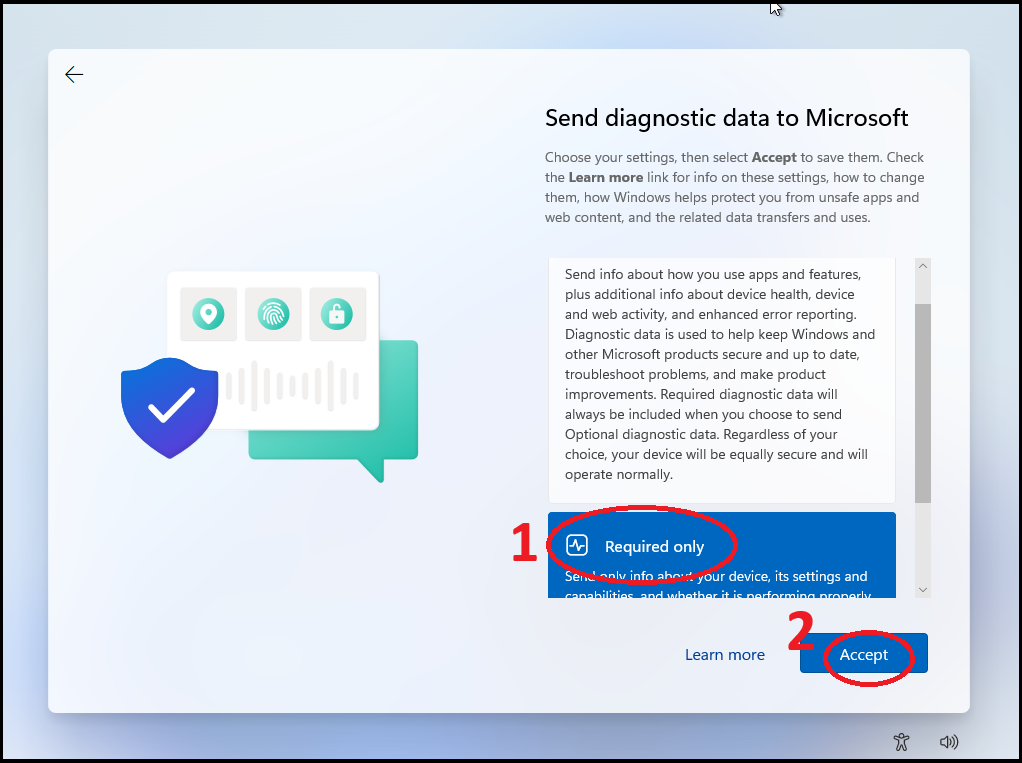
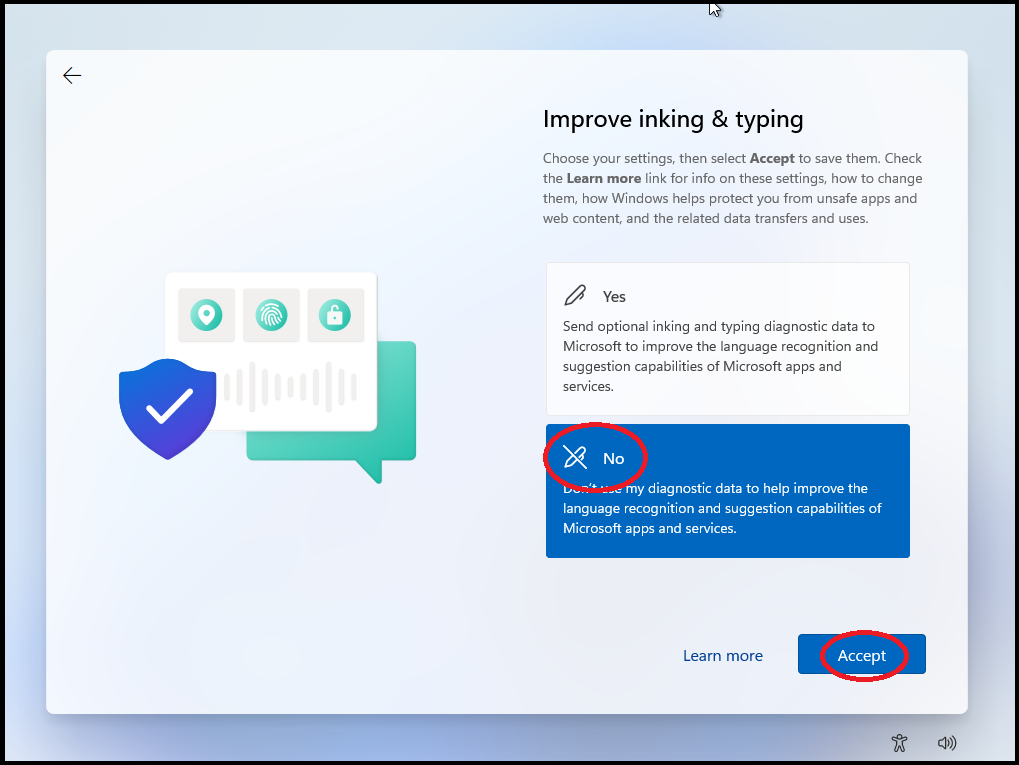
13. Click on 'No', then click on 'Accept'.
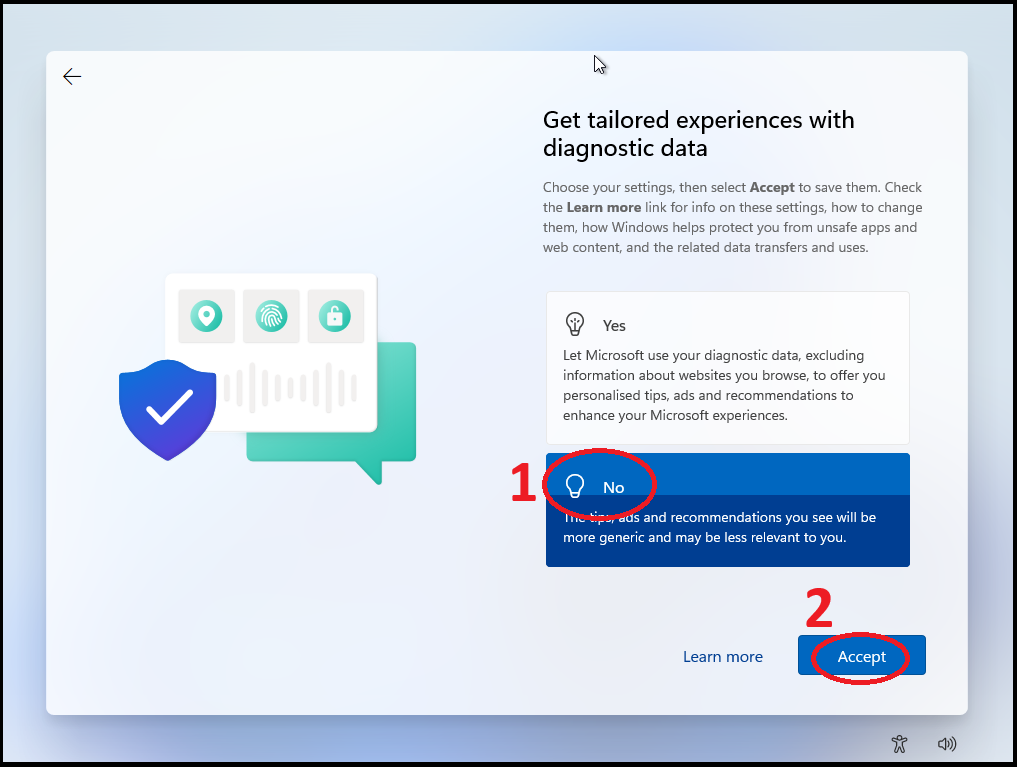
14. Click on 'No', then click on 'Accept'.
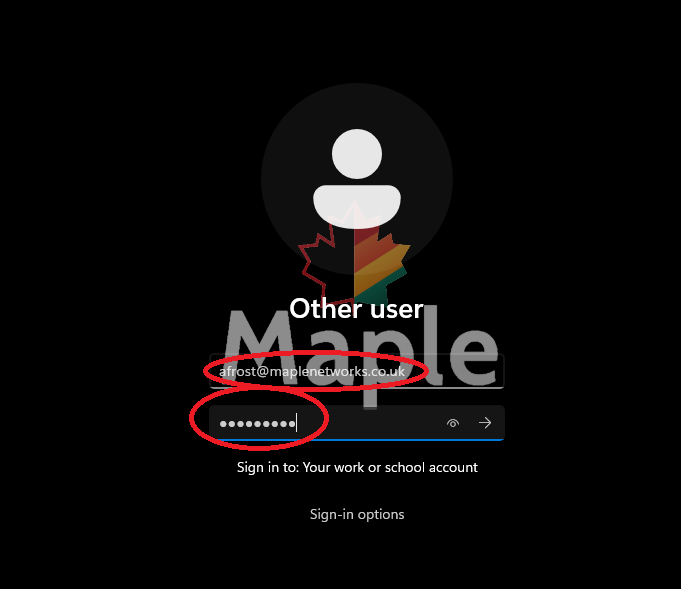
15. Type in your email address & password, then press the 'Enter' key on your keyboard.
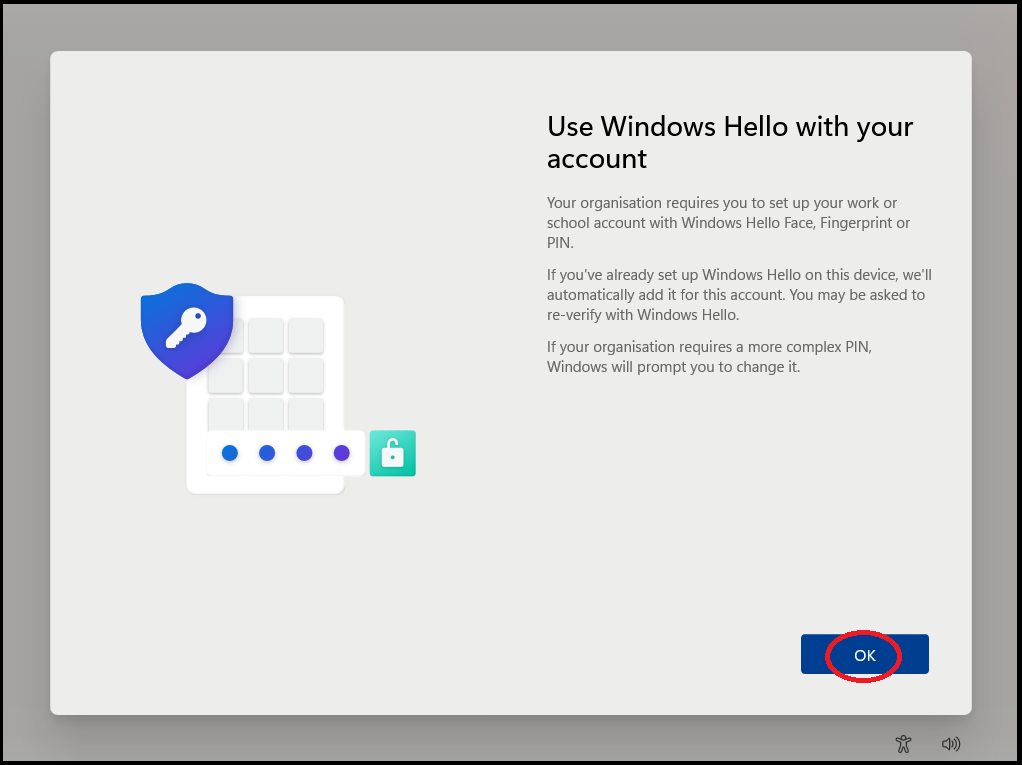
16. Click on 'OK'.
17. MFA will ask you to verify yourself again. Approve the request on your mobile.
18. You will next be asked to set a PIN. This PIN is for 'Windows Hello' and will be used each time you log into Windows. This PIN needs to be a 8 digits or more.
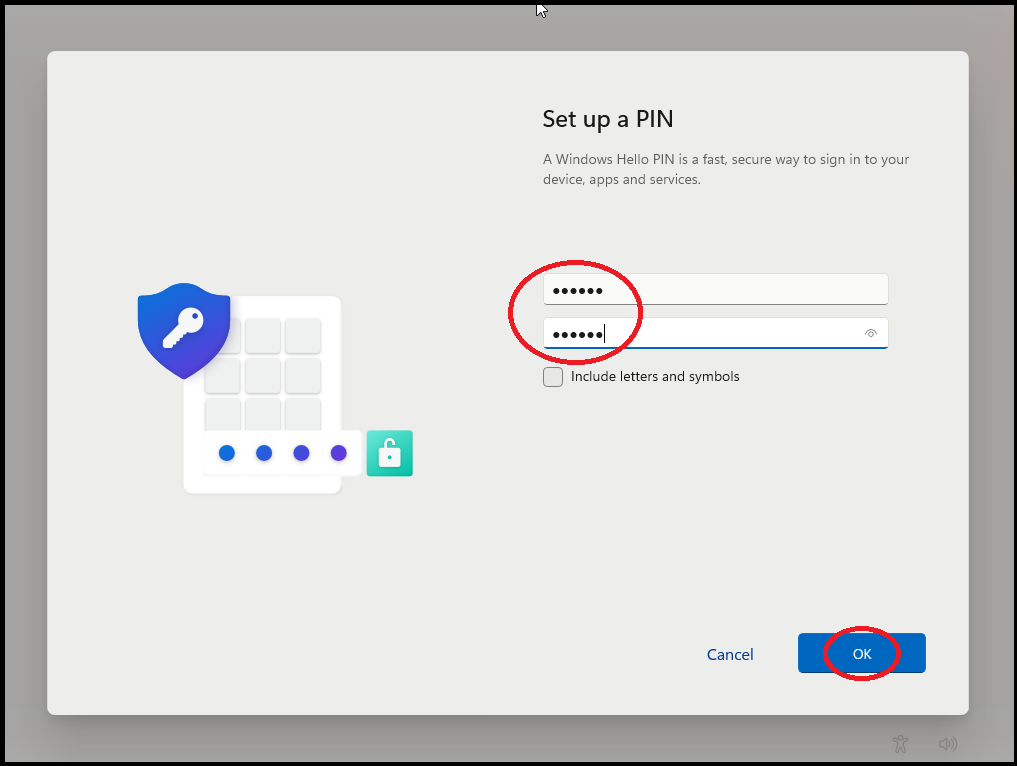
19. Click on 'OK'.
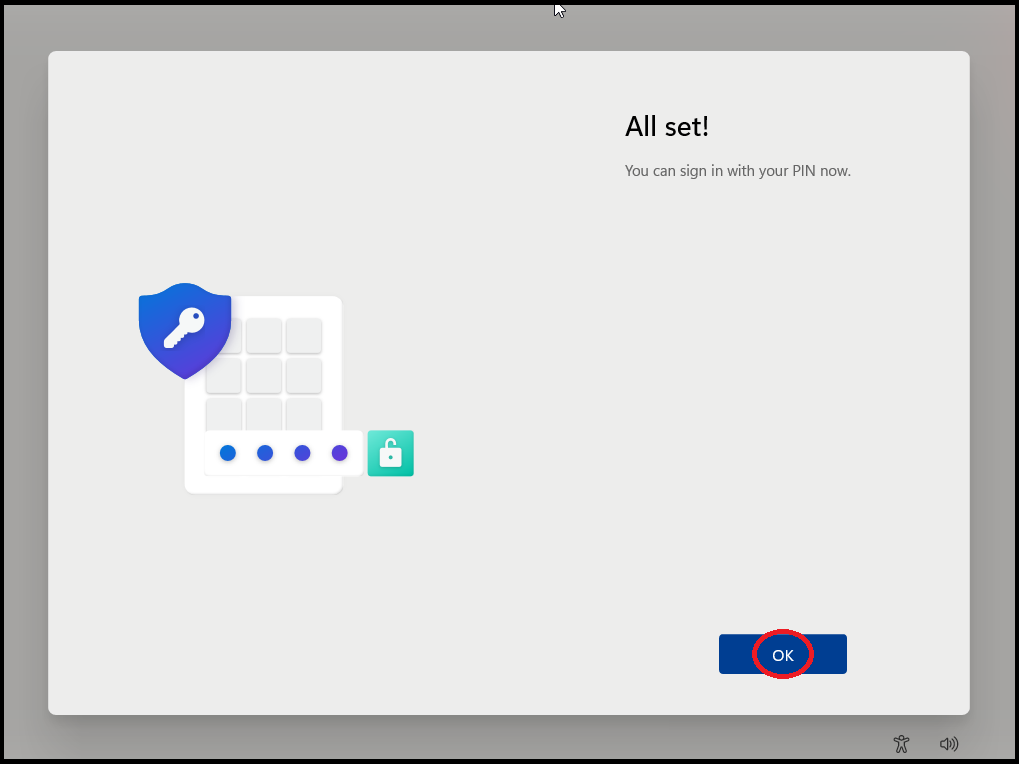
20. You should now be logged into Windows.
21. The first thing to do is uninstall McAfee that is pre-installed by Lenovo. Click here to go to the steps for that.
22. The laptop now needs to be left alone for 10 minutes to let Microsoft install things in the background. Take a look at what the time is now, then reboot it in a bit.
23. Once rebooted, log in with your Windows Hello PIN.
24. Microsoft will still be installing and configuring things in the background, so again leave it for 10 minutes, then reboot and log back in again.
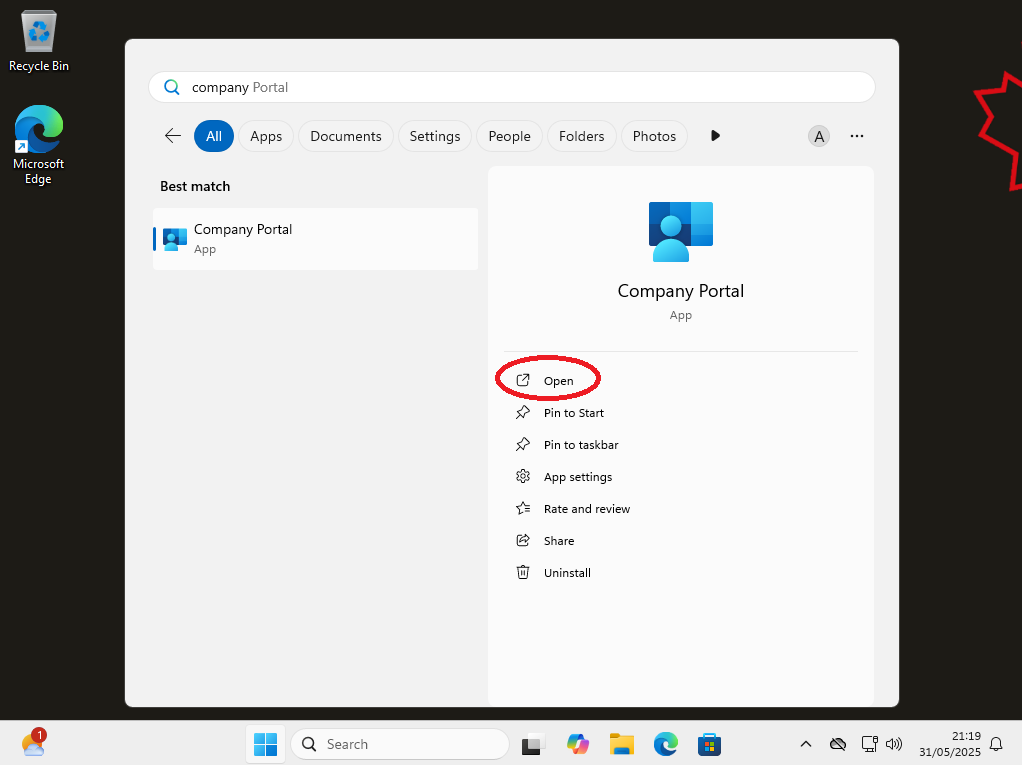
25. Once back in, press the Windows key on the keyboard, then type 'Company Portal'. Hopefully the program will have been installed. You will know as it will give you the option to Open it. Click on 'Open'.
If though the program is not installed, leave it 30 more minutes, reboot, log back in and then check again. Sometimes it can be delayed when the Microsoft servers are receiving a lot of requests.
26. The program will ask you the best category for your job role. Select it, then click on 'Done'.
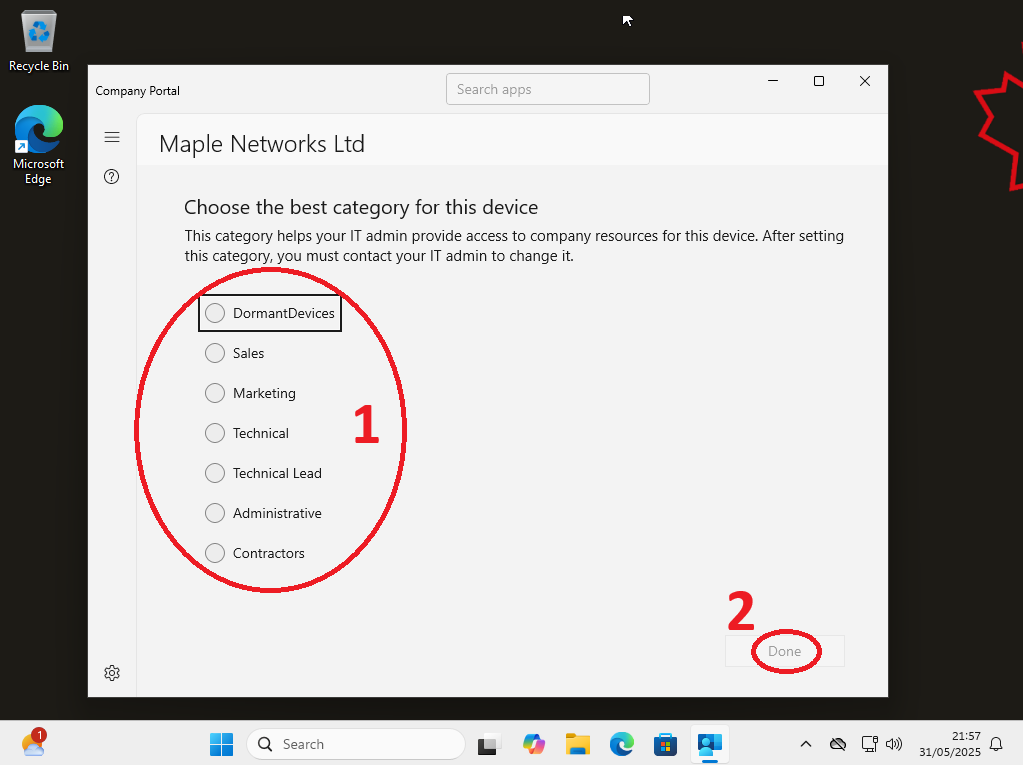
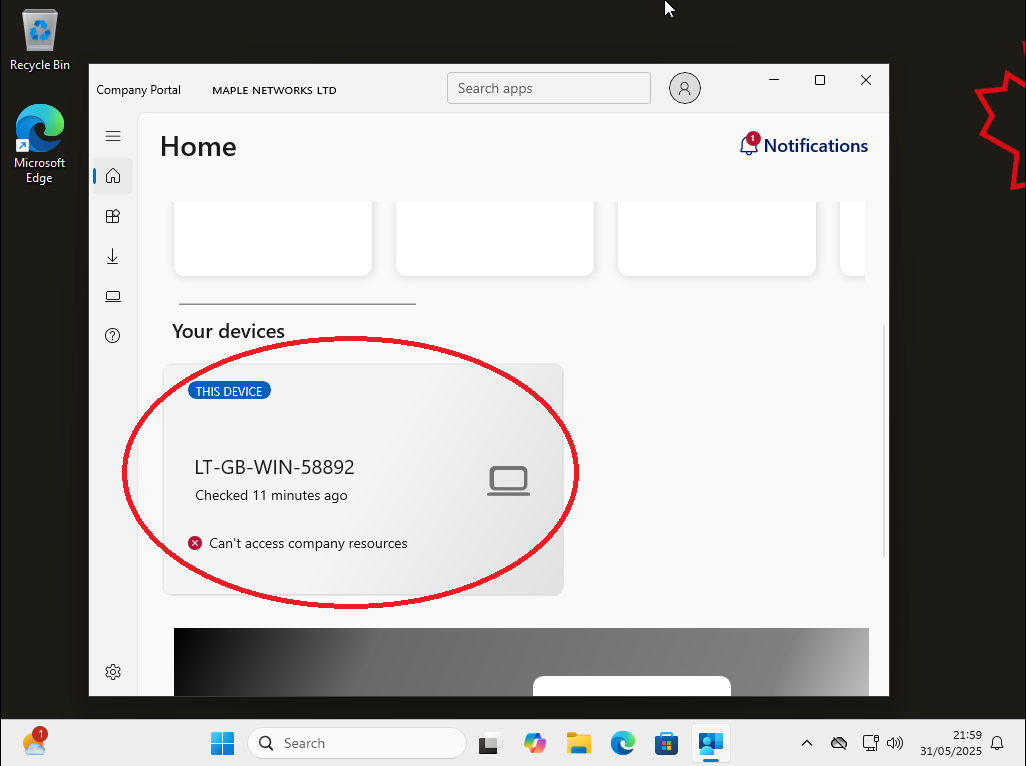
27. On the screen will be a section called 'Your devices' (you may need to scroll down to see it fully). In this section will be 'THIS DEVICE', and in there it will say if the device can access company resources or not.
Click here if it says that you can access company resources
Click here if it says that it can't access company resources