While the laptop is now compliant (can access company resources), we still need to do some more steps before you can use it.
Microsoft Teams
1. Press the Windows key on your keyboard, then type in 'Teams'.
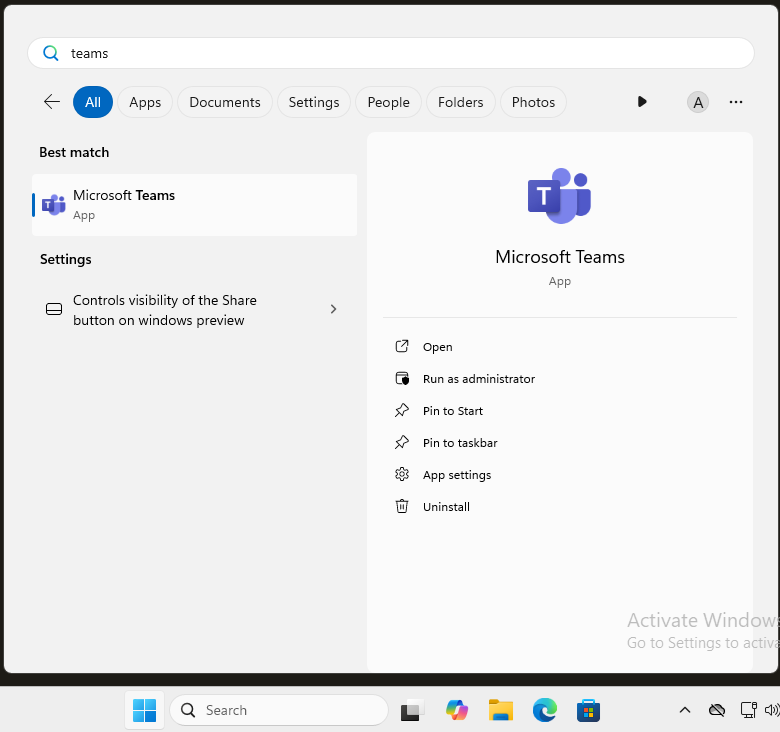
2. In the search result, you will see either 'Microsoft Teams', or 'Microsoft Teams (personal)'.

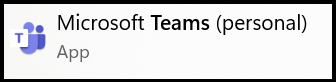
If you see 'Microsoft Teams', click on it to load it (it will auto-log in for you). You can skip the remaining steps for Teams, and instead scroll down to the section on OneDrive.
If you see 'Microsoft Teams (personal)', continue with step No. 3
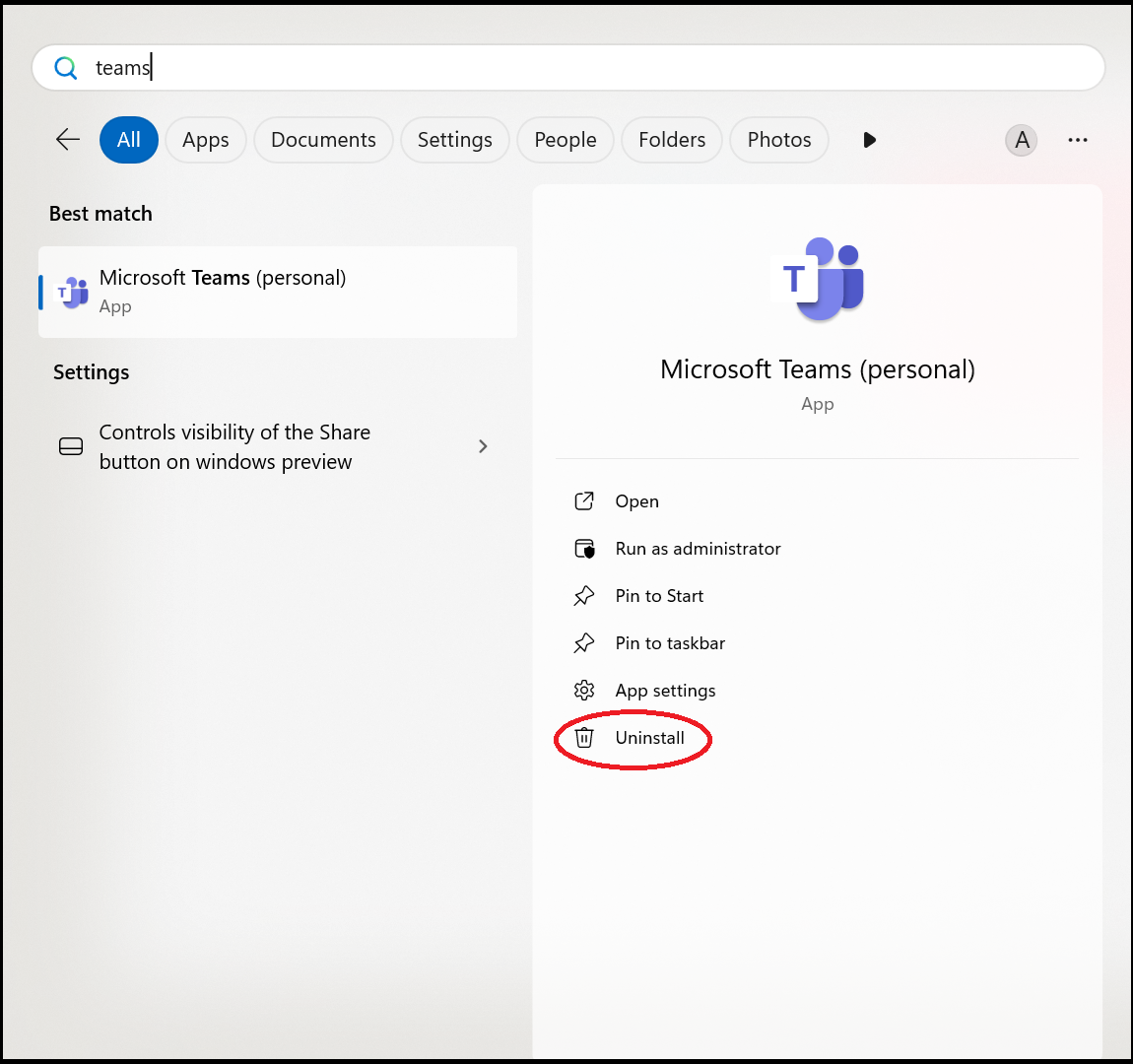
3. Click on 'Uninstall'.
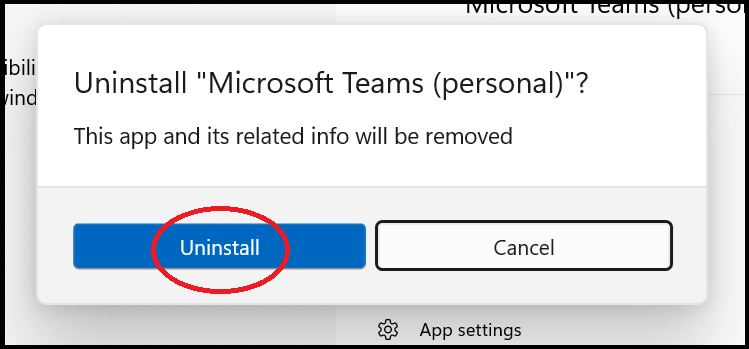
4. A confirmation prompt will appear, click on 'Uninstall'.
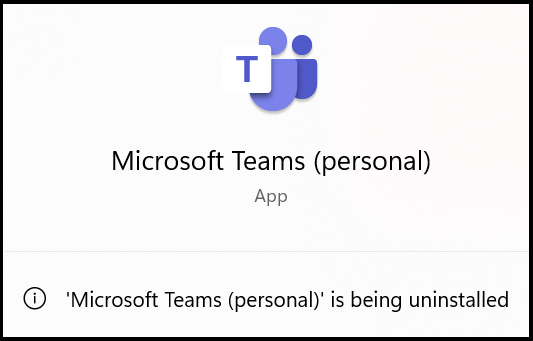
5. It will now show that it is uninstalling the program.
6. We now need to install the correct version of Teams. Load Microsoft Edge.
7. As this is the first time we have used Microsoft Edge, it will ask us a few questions. Click here for more information on how to answer them.
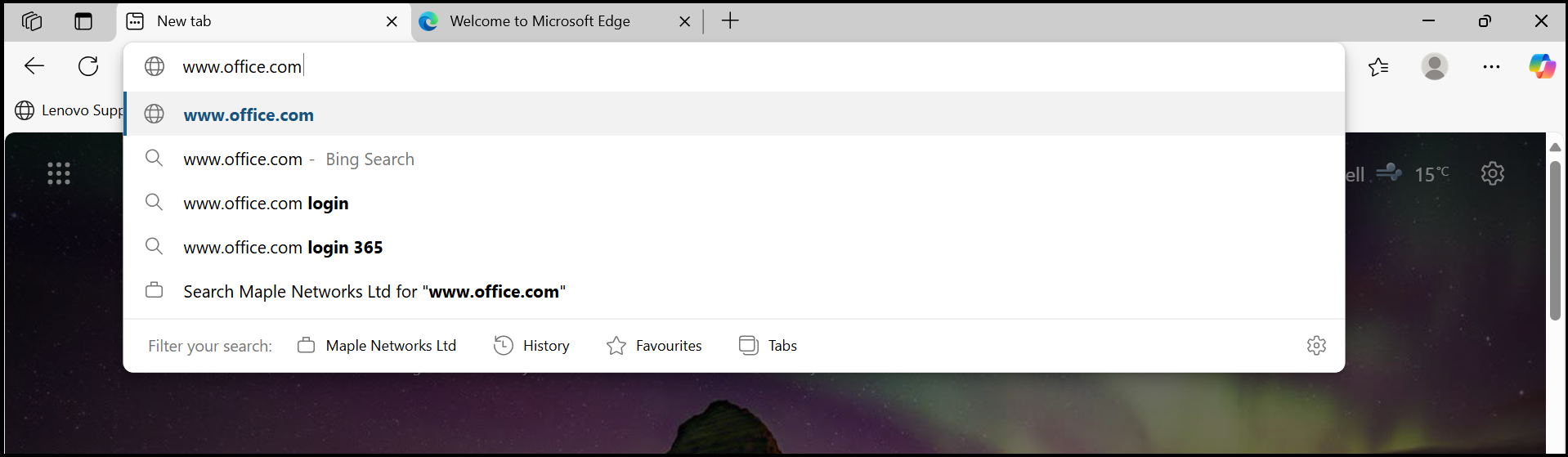
8. Type in 'www.office.com' in the address bar, then press the Enter key on the keyboard.
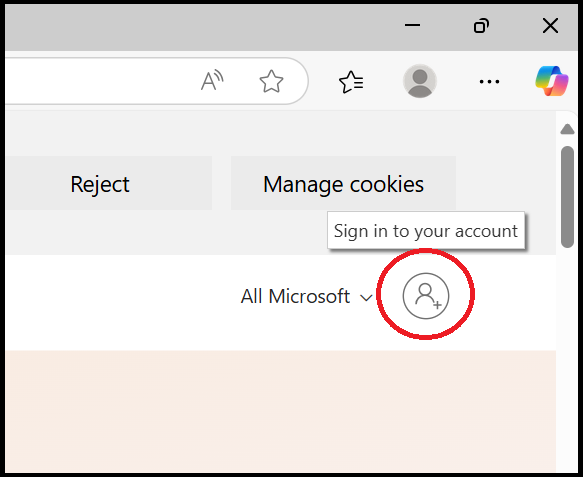
9. Click on the user icon to the right of where it says 'All Microsoft'.
10. You may be automatically signed into the web site and see the below. If you are asked to log in, use your email address and password.
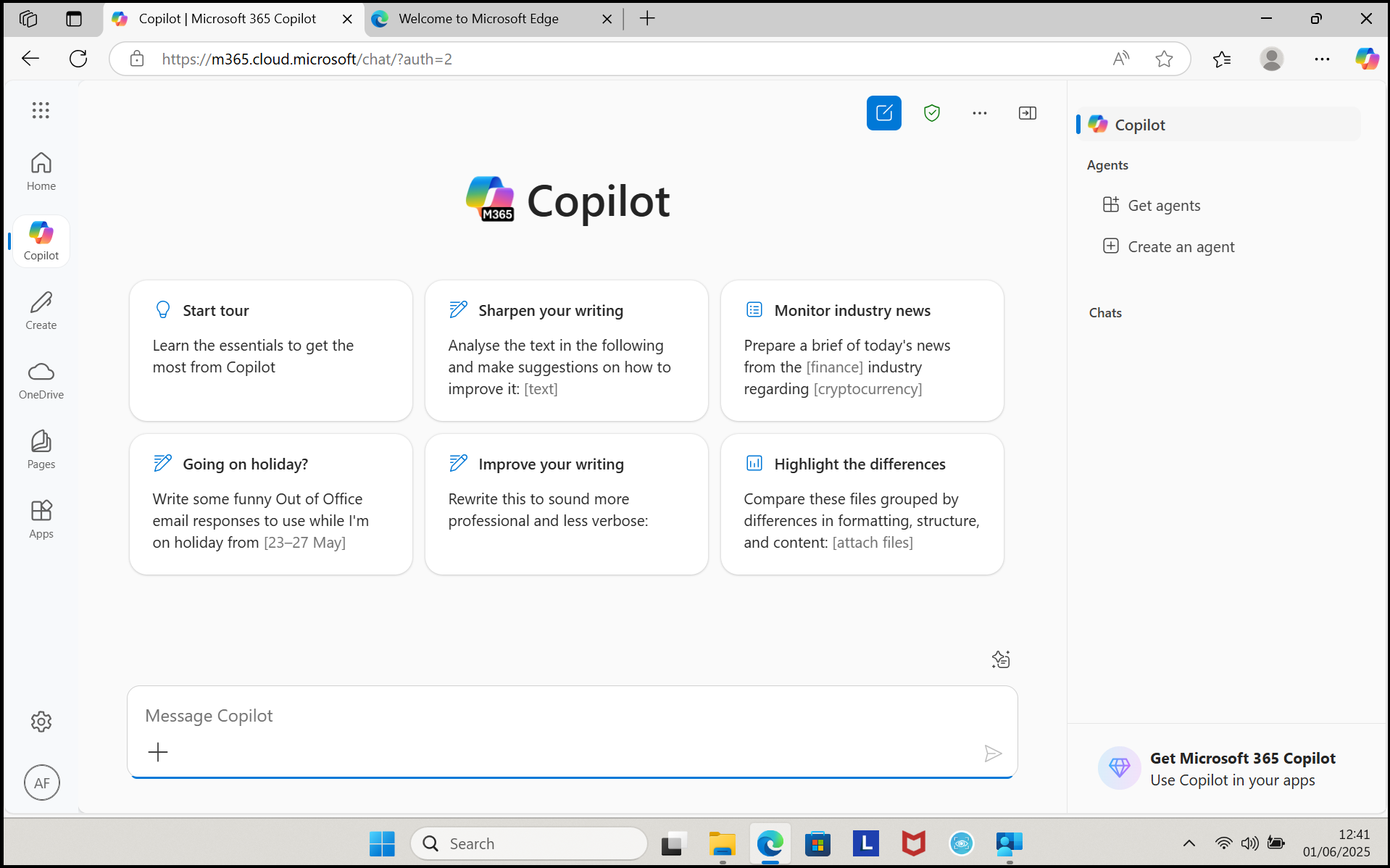
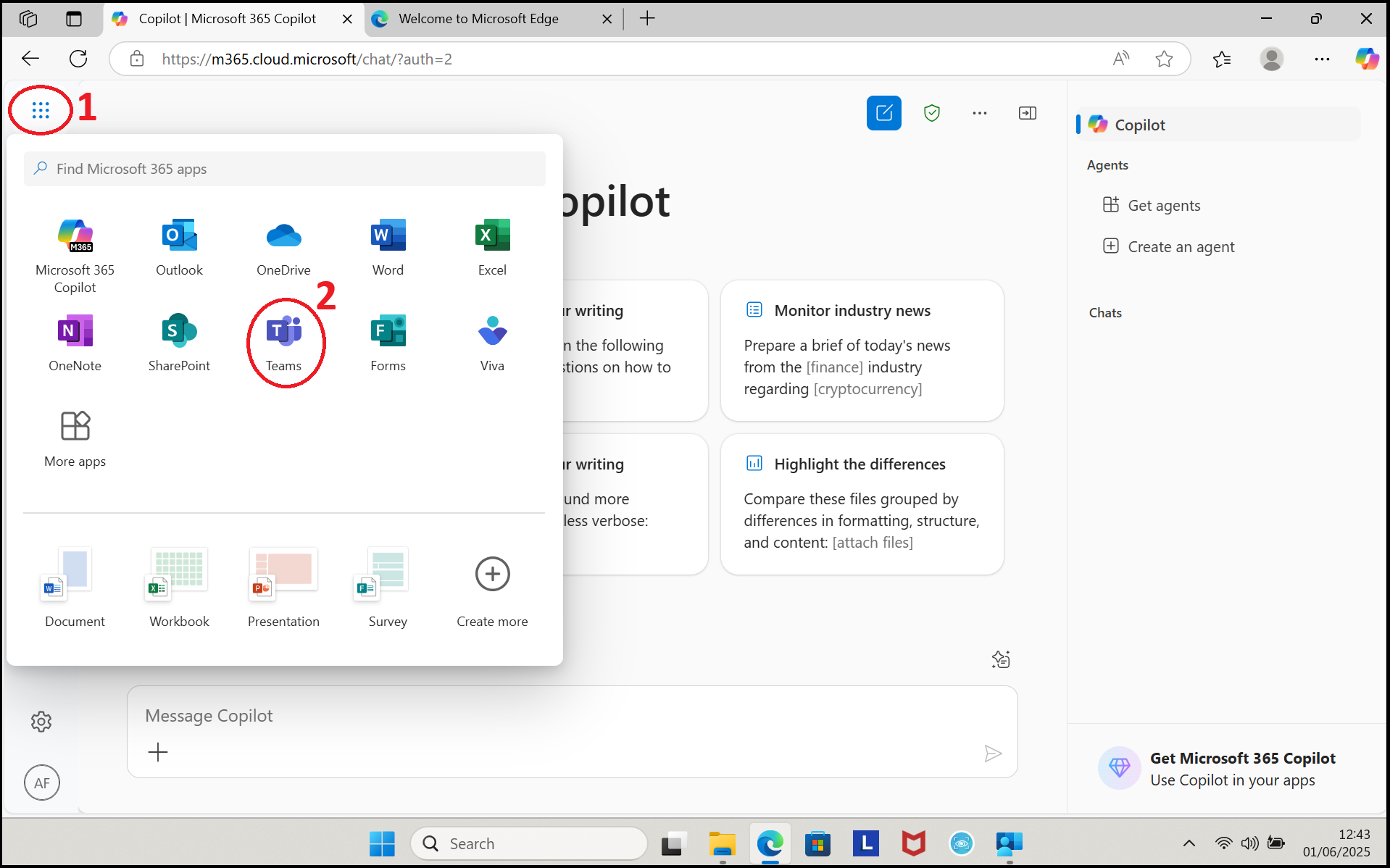
11. Click on the group of dots in the top left corner of the screen, then click on 'Teams'.
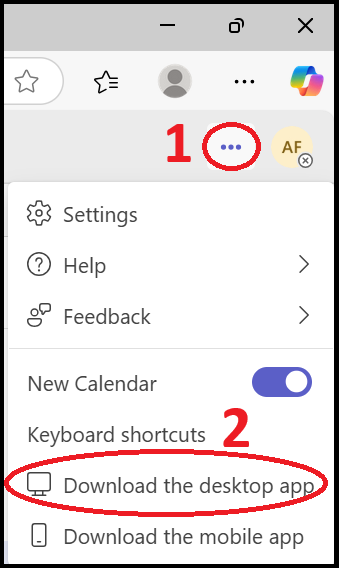
12. Teams will now load. Click on the three dots in the top right corner of the screen (the ones to the left of your initials). Then click on 'Download the desktop app'.
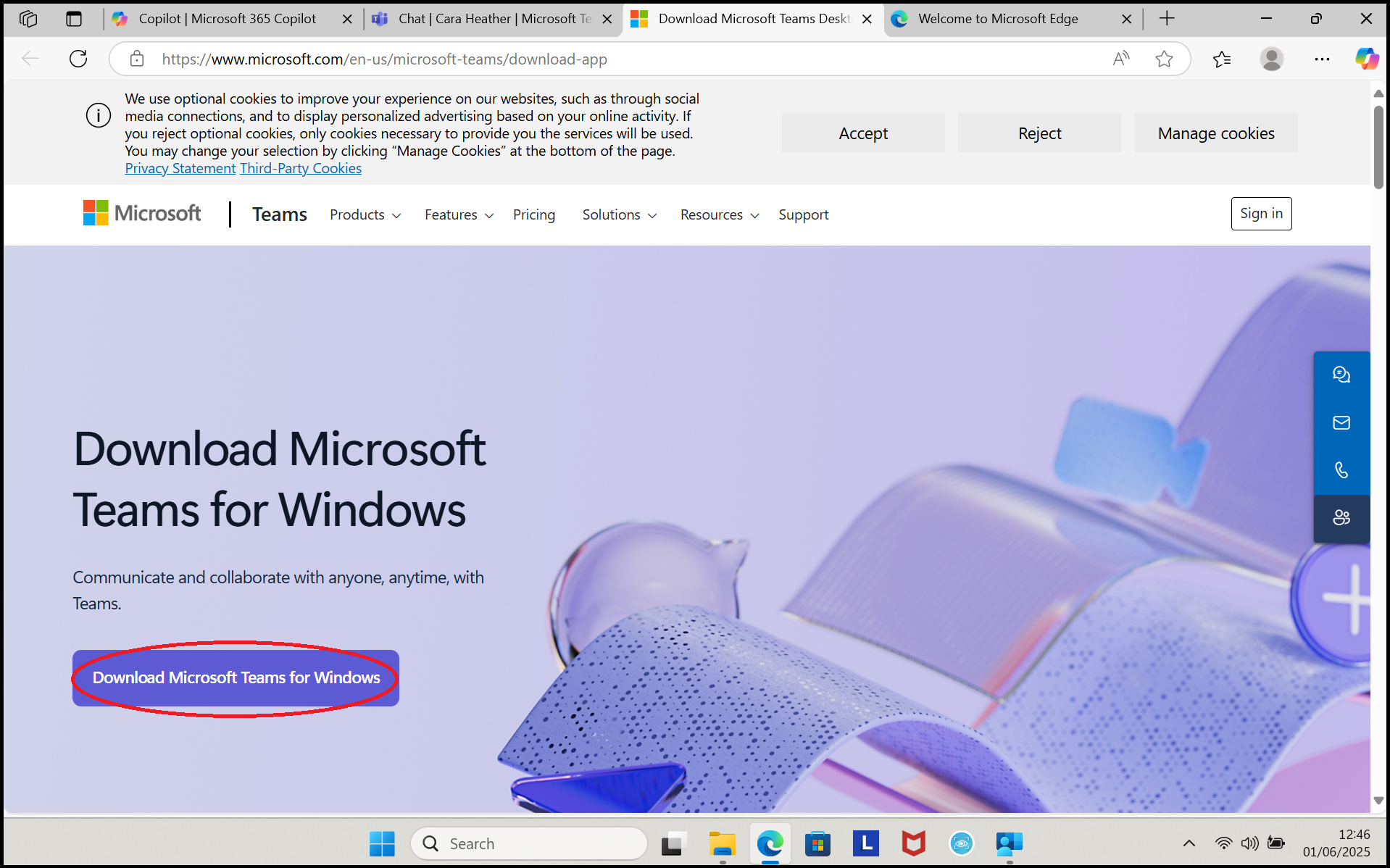
13. Click on 'Download Microsoft Teams for Windows'.
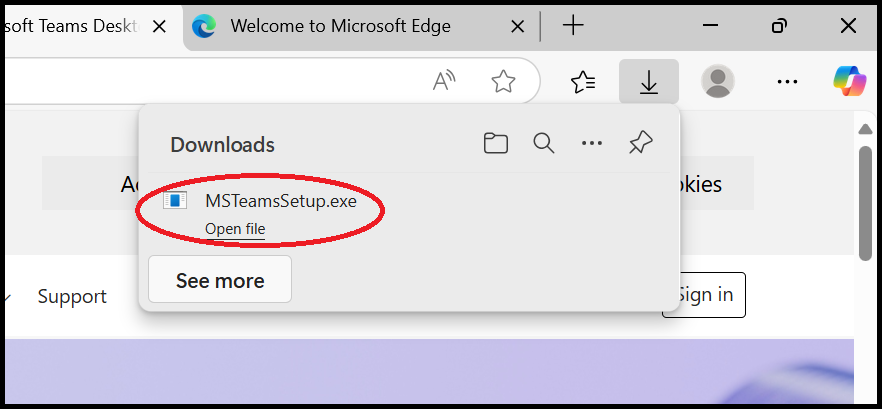
14. The Teams installer will now download. When complete it will show like the below. Click on 'Open file'.
15. Teams will now download & install. Once complete it will load & will automatically log you in.
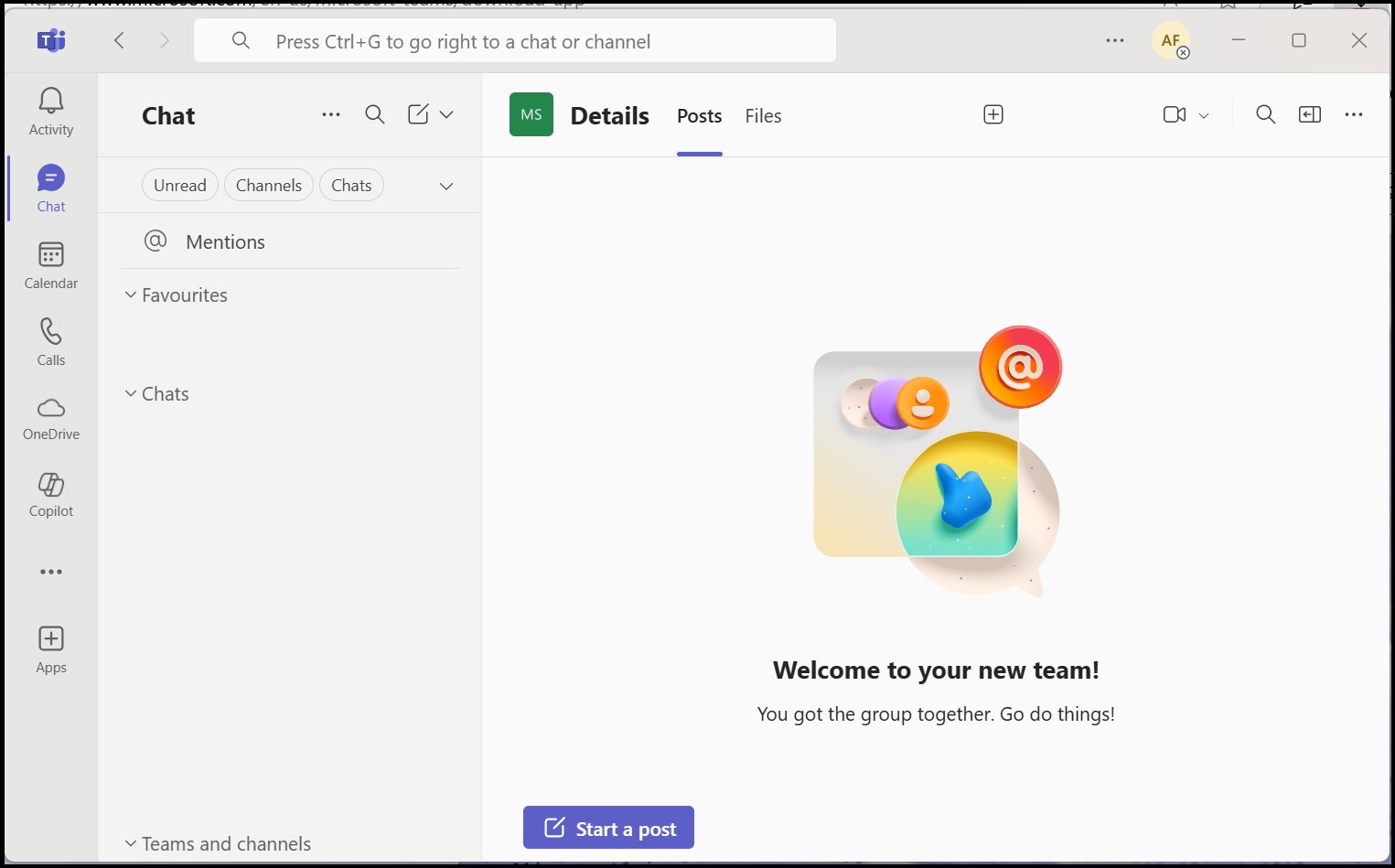
Microsoft OneDrive
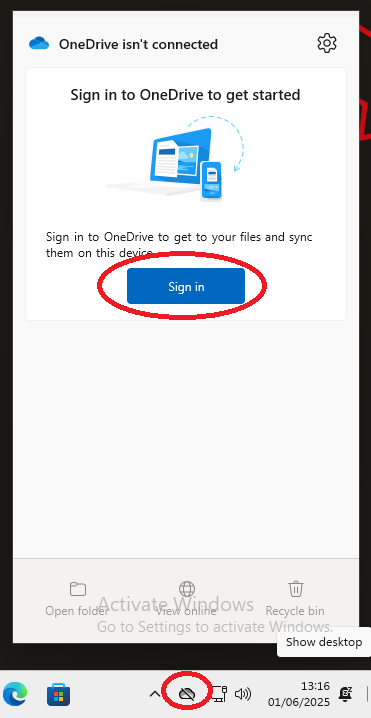
1. Click on the OneDrive icon that is in the System Tray. Then, click on 'Sign in'.
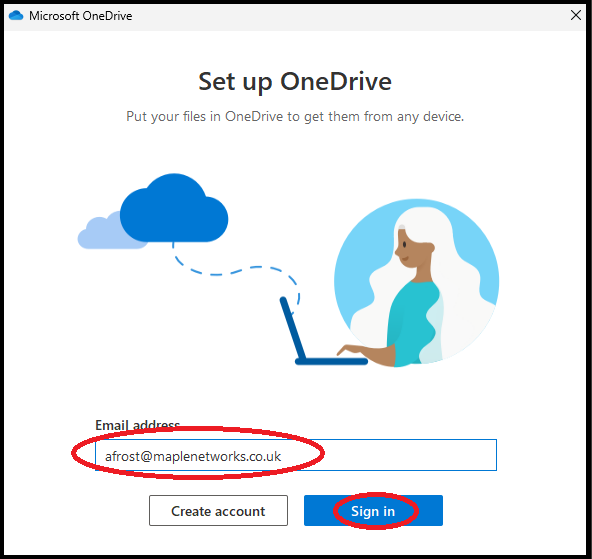
2. Your Maple email address may already be typed into the Email Address box. If it is not, type it in. Next, click on 'Sign in'
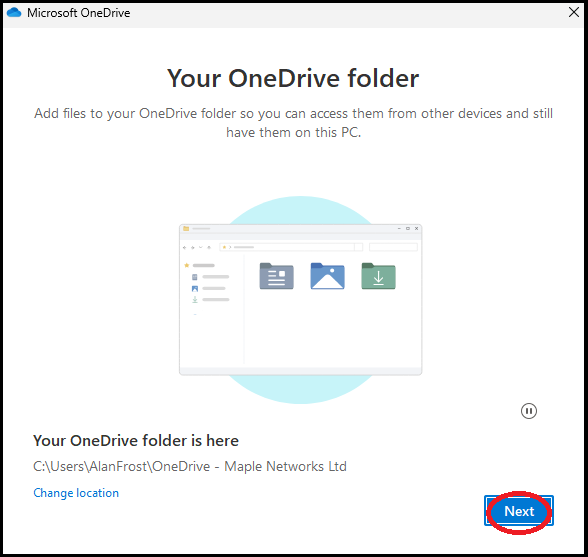
3. Click 'Next'.
4. Click on 'Start backup'.
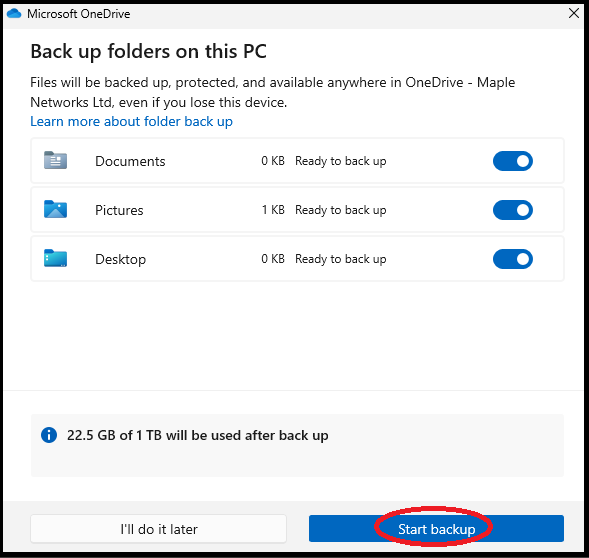
5. Click on 'Next' on this and the next two screens.
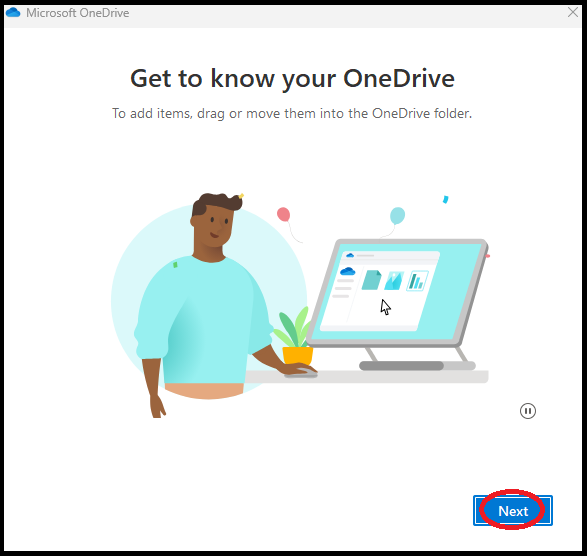
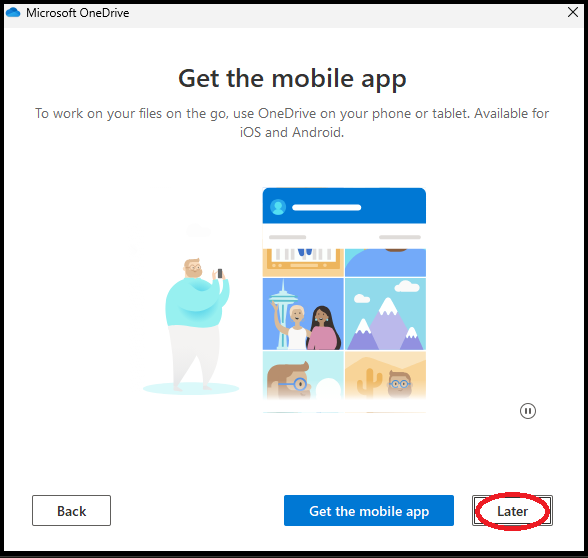
6. Click on 'Later'.
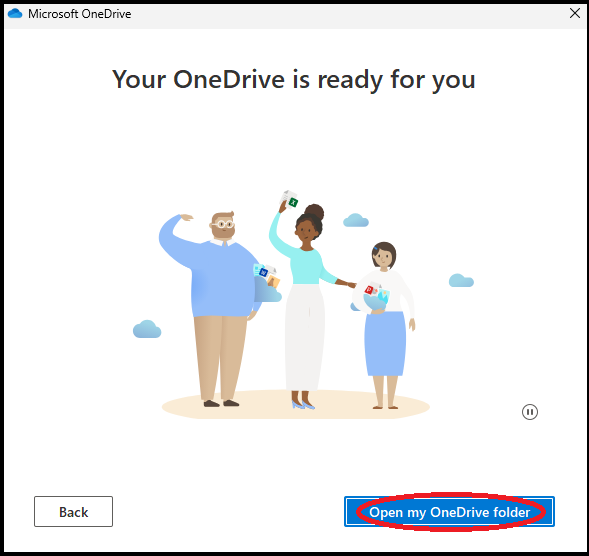
7. Click on 'Open my OneDrive folder'.
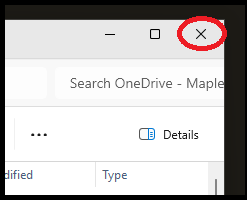
8. Close File Explorer.
Power settings & screen saver
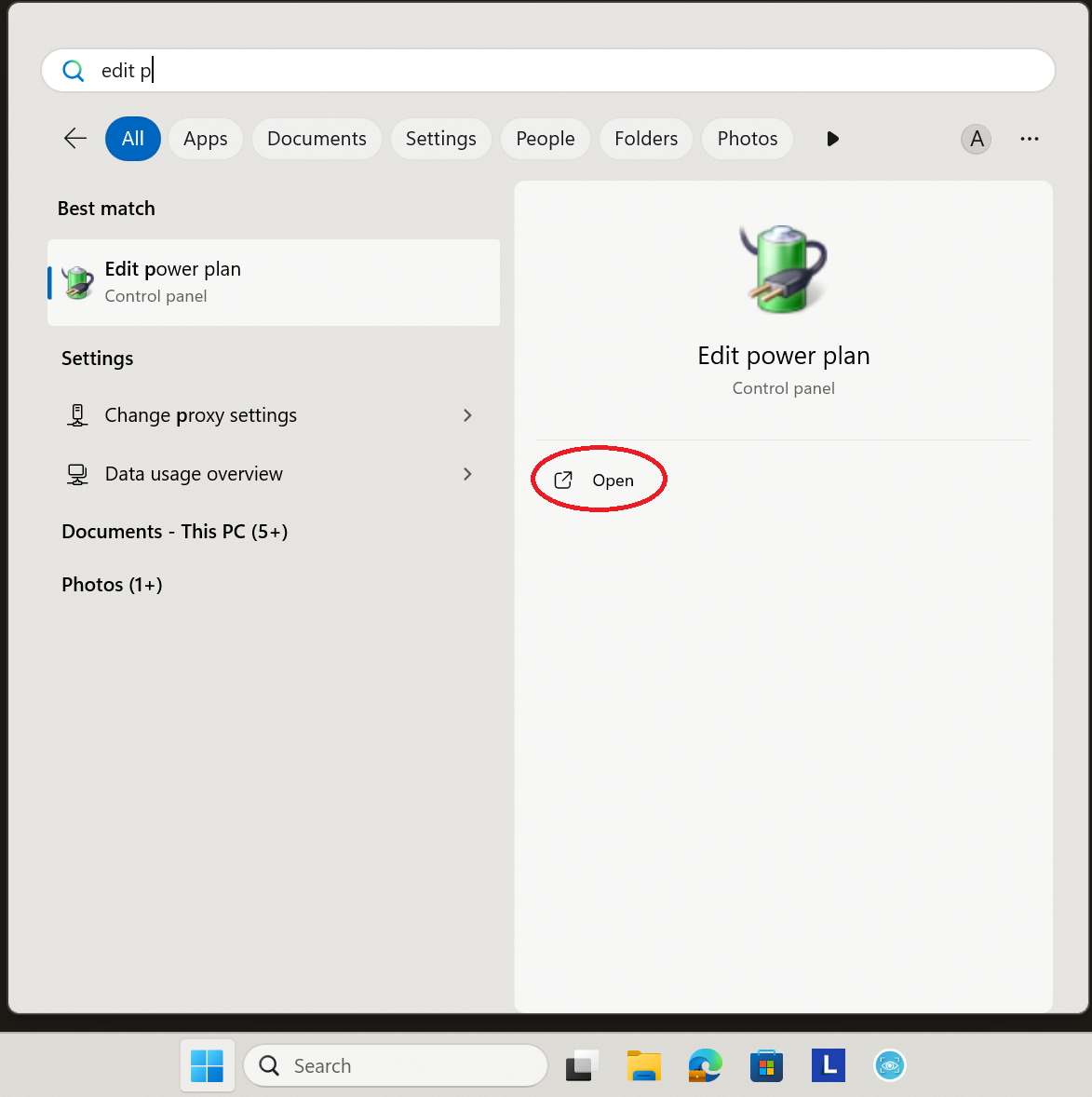
1. Press the Windows key on your keyboard, then type 'edit po', next click on 'Open' under 'Edit Power plan'.
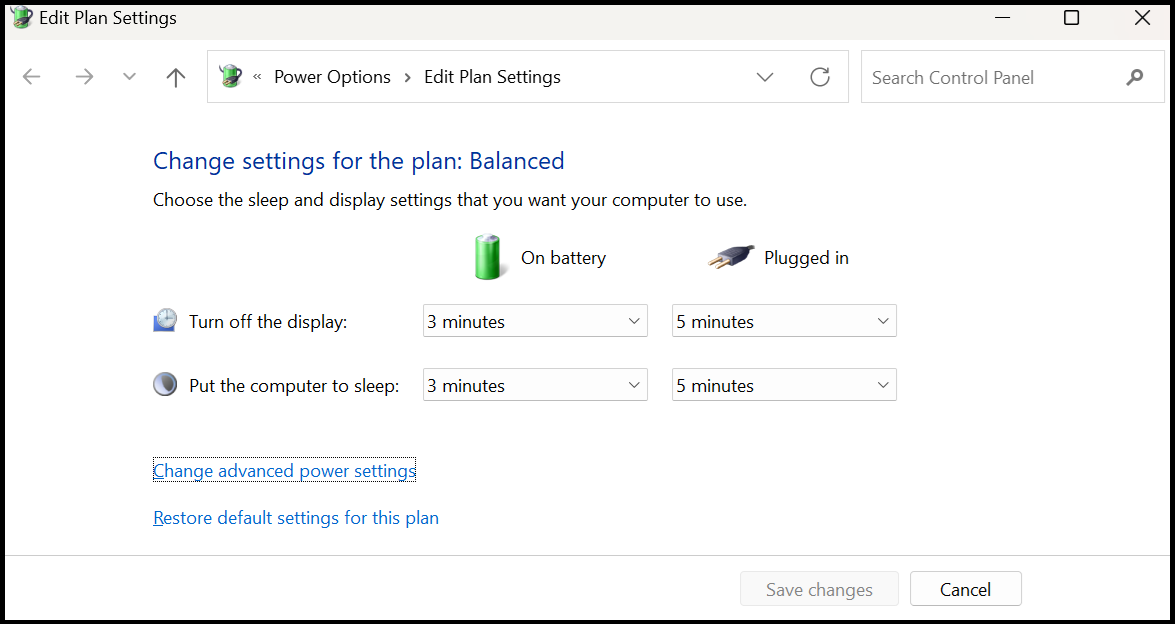
2. The default power settings will be shown. These are very low and need to be changed (in the next step).
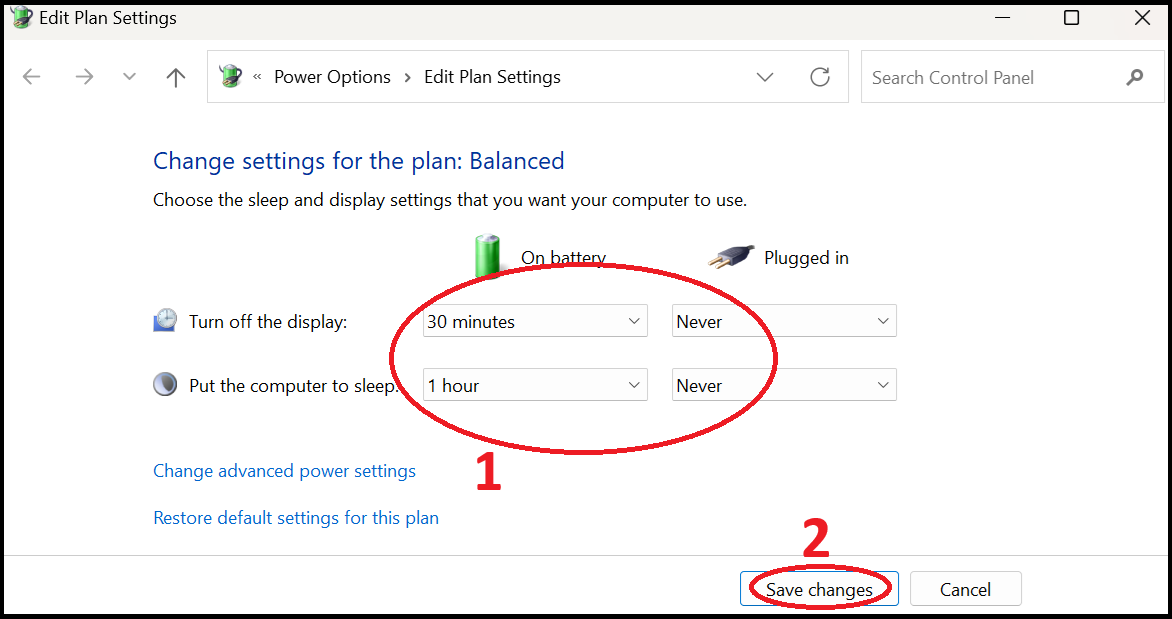
3. The below settings are my own personal recommendation, by all means set what you would prefer. Once you have finished changing them, click on 'Save changes'.
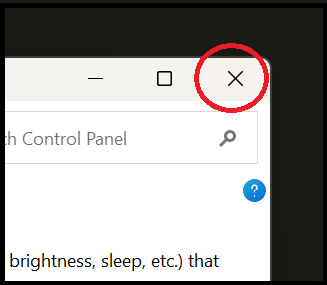
4. Close the 'Power Settings' window.
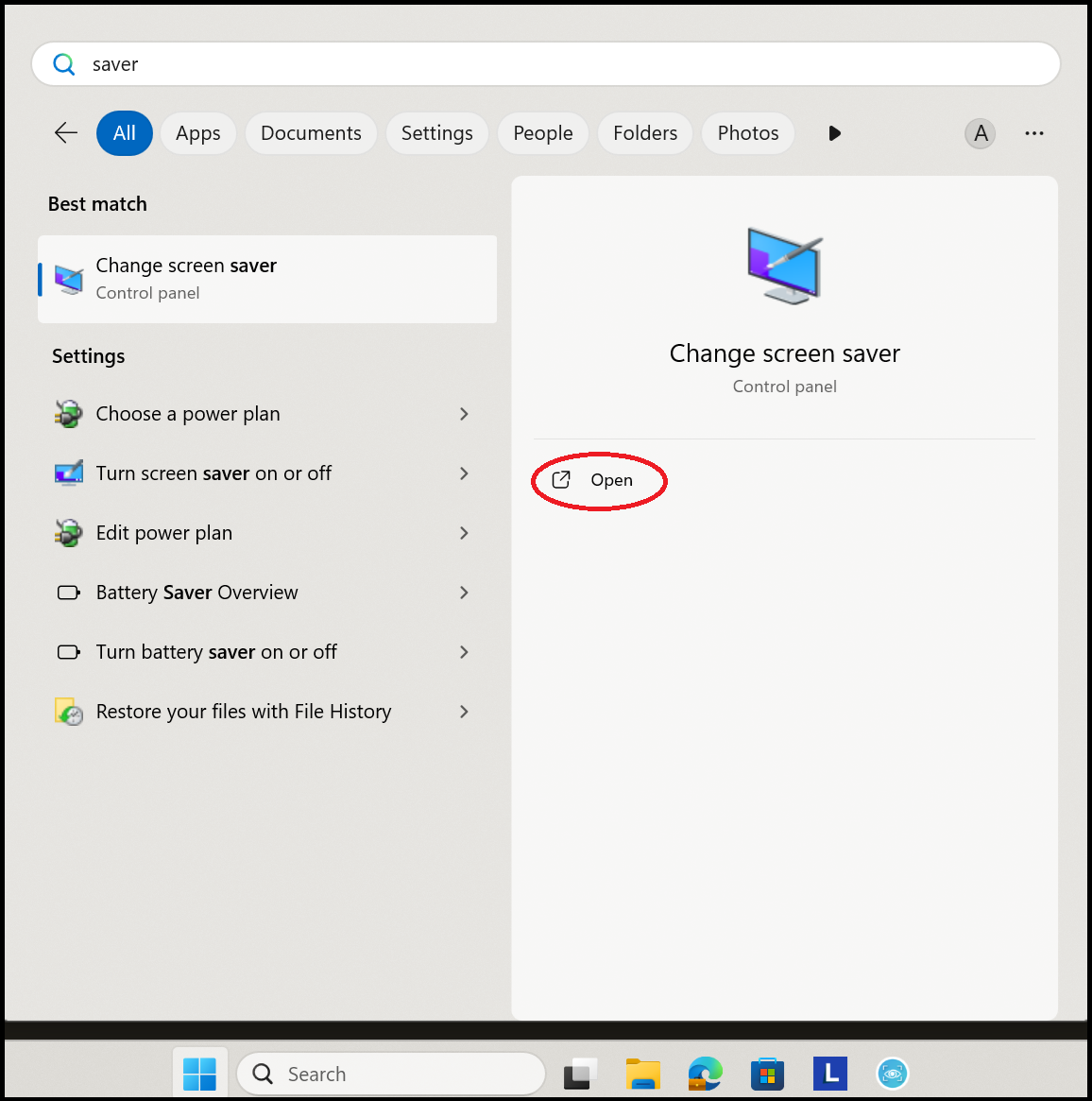
5. Press the Windows key on the keyboard, then type 'saver'. Click on 'Open' under 'Change screen saver'.
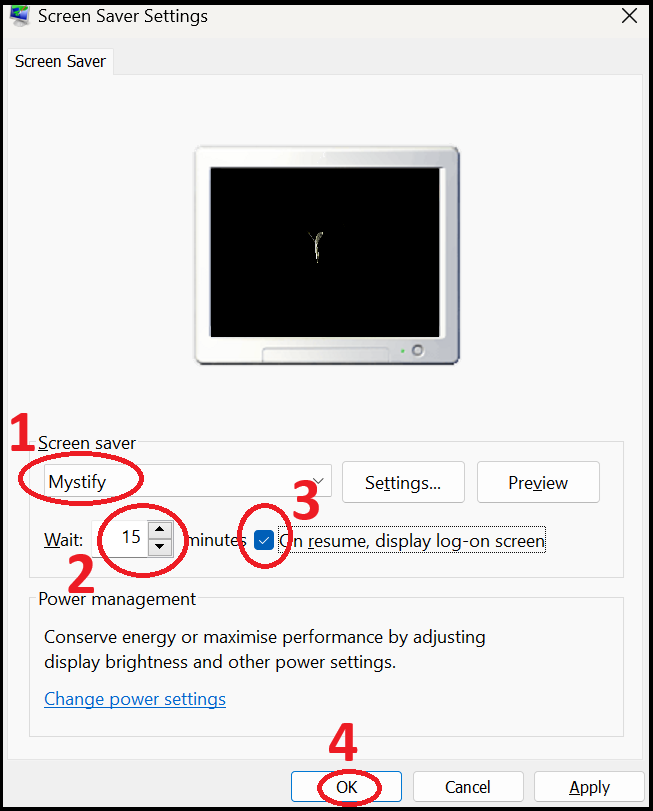
6. Change the Screen saver to 'Mystify', the wait time to 15 minutes, and tick the box for 'On resume display the log-on screen. Click on 'OK'.
Setting up Outlook
There are two different versions of Outlook that people can use. They are 'Outlook' and 'Outlook (classic)'. I personally would recommend the classic version, but by all means choose which one you would prefer to use. For the below steps I will be showing the classic version.
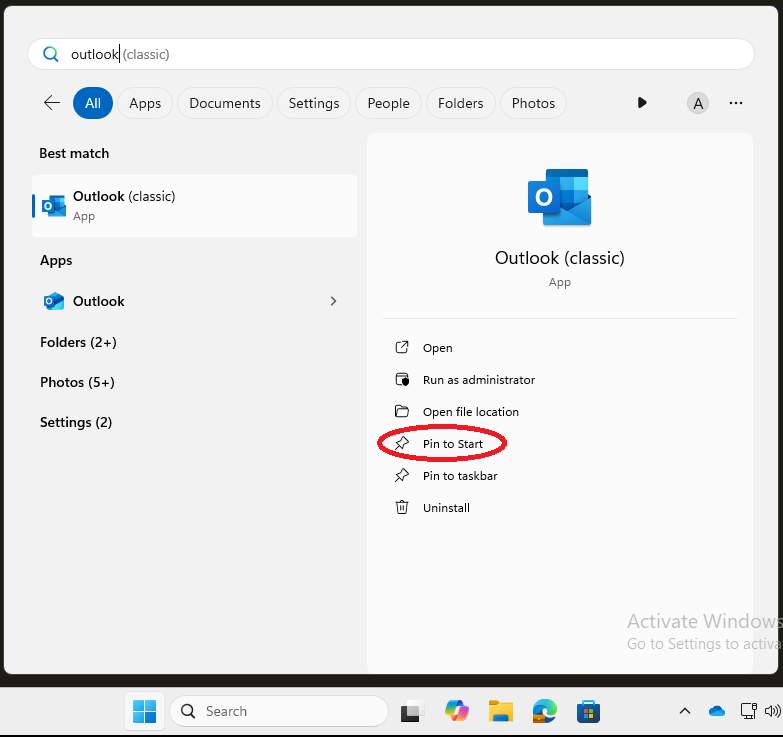
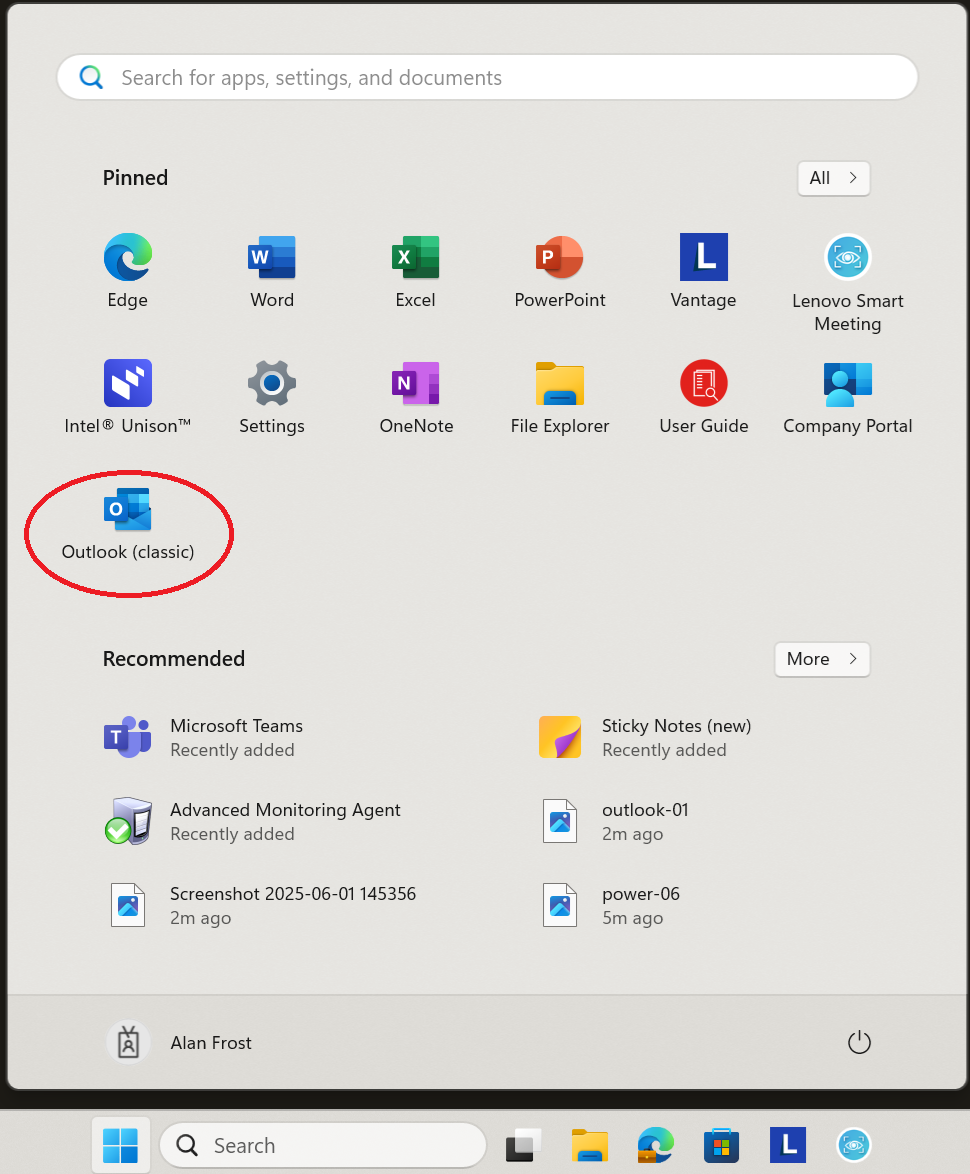
1. Press the Windows key on your keyboard, then type 'Outlook c'. Click on 'Pin to Start' under 'Outlook (classic)'.
2. Press the Windows key on your keyboard, then click on 'Outlook (classic)'.
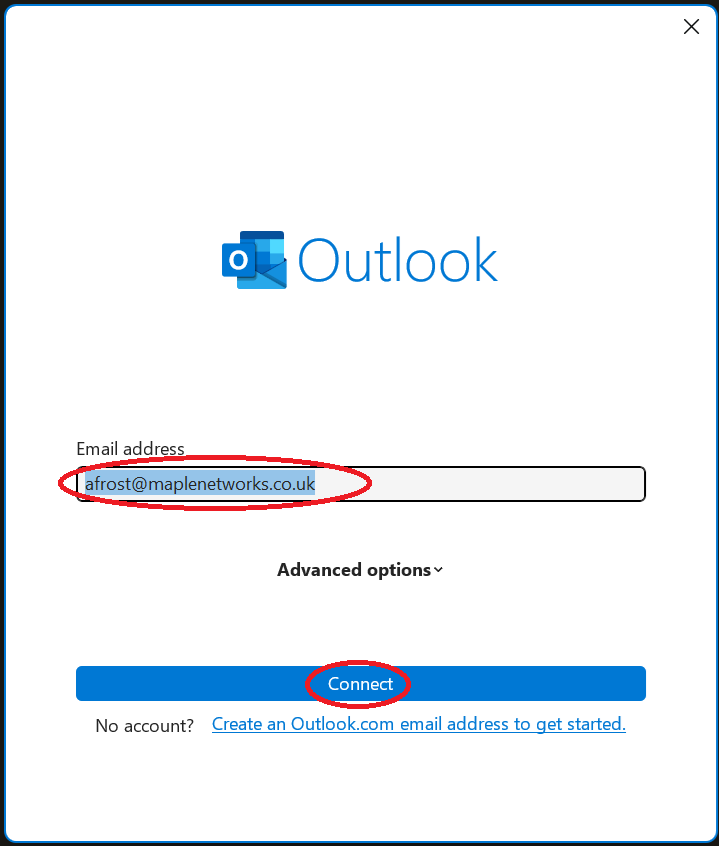
3. When Outlook loads it will try to find your account. If it works, your email address will be in the next box. If it is not there, type in your email address. Then, click on 'Connect'.
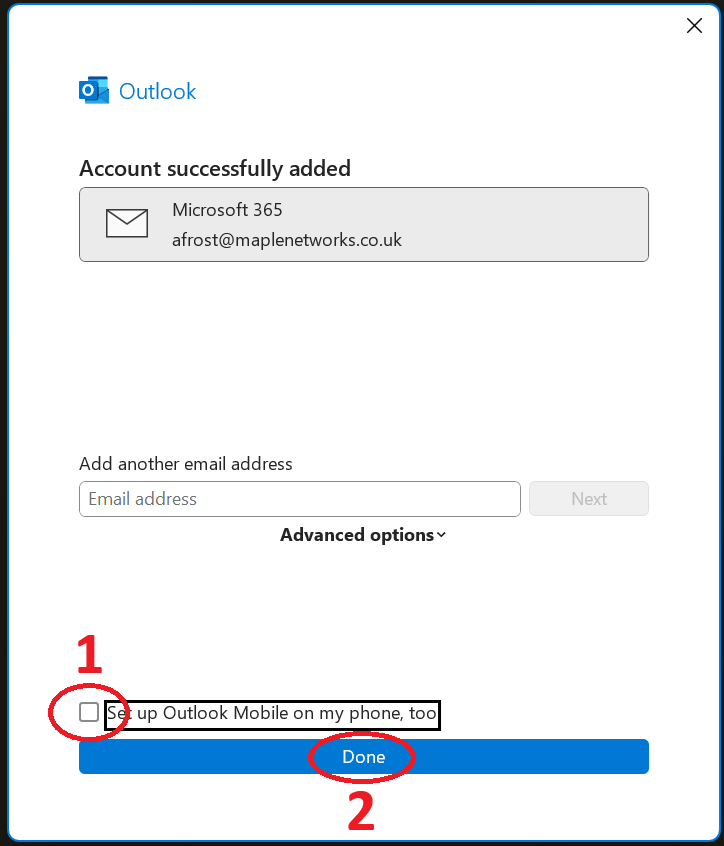
4. Unlick the box 'Set up Outlook Mobile...', then click on 'Done'.
Microsoft Edge
Lastly we need to log into Microsoft Edge to set it up. If you had to download Microsoft Teams, you will have already setup Edge, so you don't need to continue. Otherwise, click here for the guide.
You have now setup everything that must be done. I would highly recommend taking a look at the Tweaks page as it has some helpful setting changes for things like Outlook and Windows. Click here to view it.