Before a laptop can be used, a special file called a Hash file needs to be generated on it. This file can be imported into our Microsoft account, and we can tell Microsoft that it is an authorised laptop.
Please follow the below steps to generate the file. You will then need to email the file to Internal IT so they can import the file.
1. Switch on the laptop
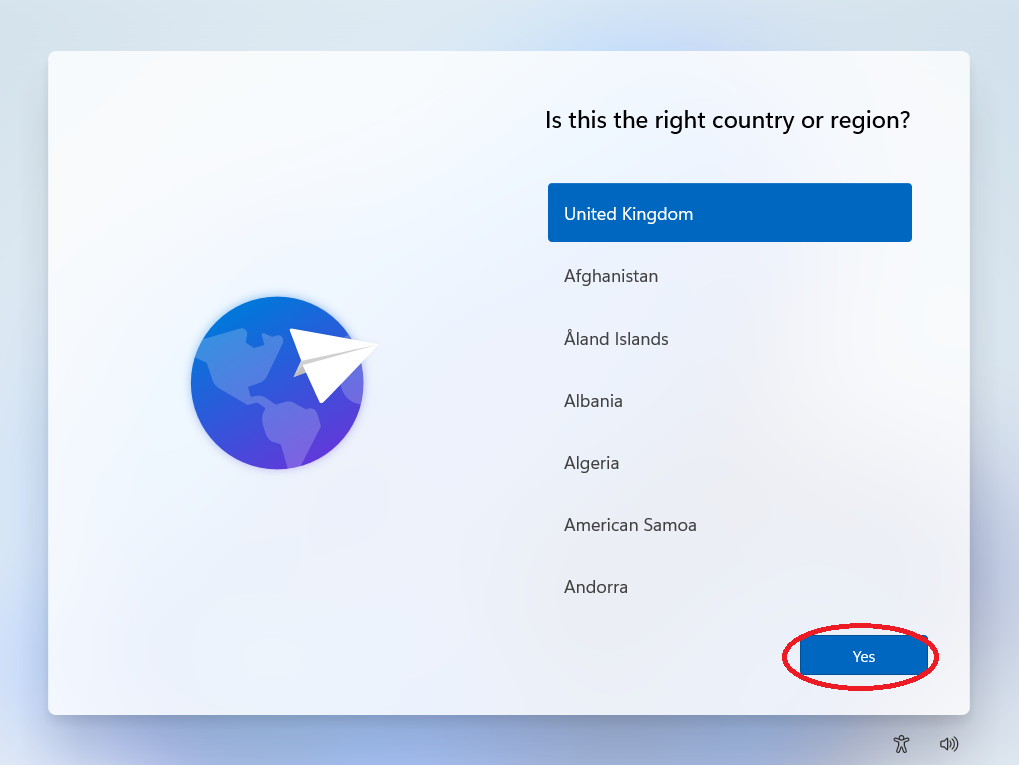
2. The laptop will start to boot up. When it looks look the below (where it asks about Region), hold down the keys 'CTRL' + 'Shift' + 'F3'. The screen should start to change as it boots into Windows. If nothing happens after pressing the keys, try a different combination of keys which are: 'Ctrl' + 'Shift' + 'Fn' + 'F3'.
You will know if it worked as the screen will go black, then it will log you into Windows.
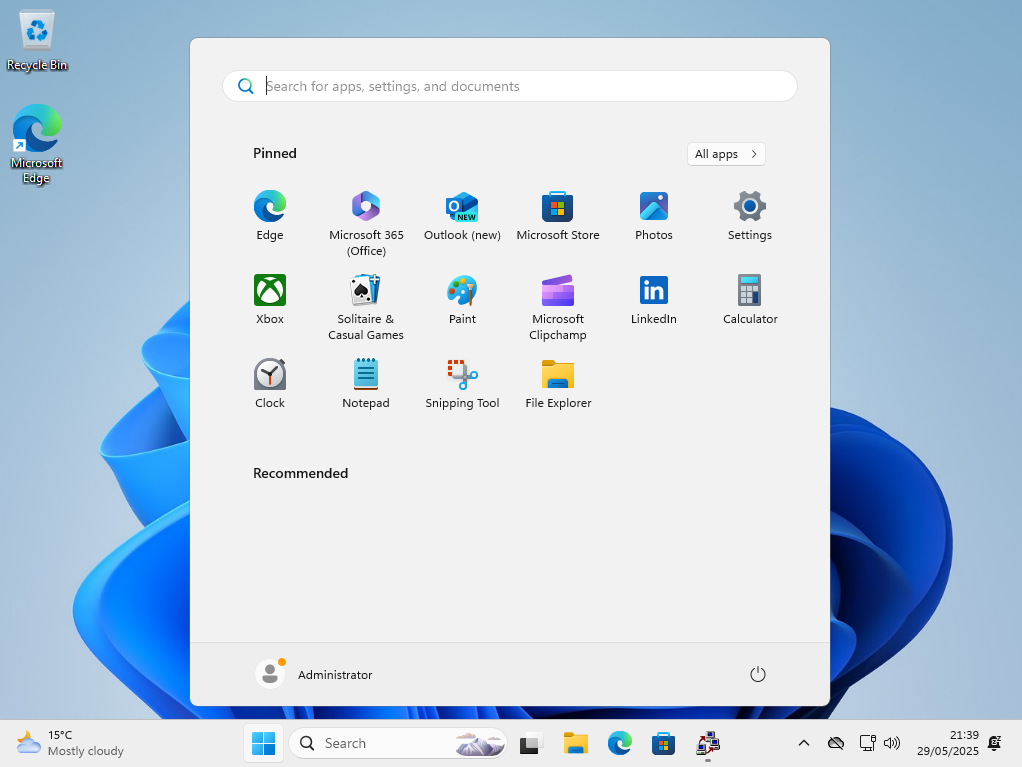
3. Once logged into Windows, it will look like the below.
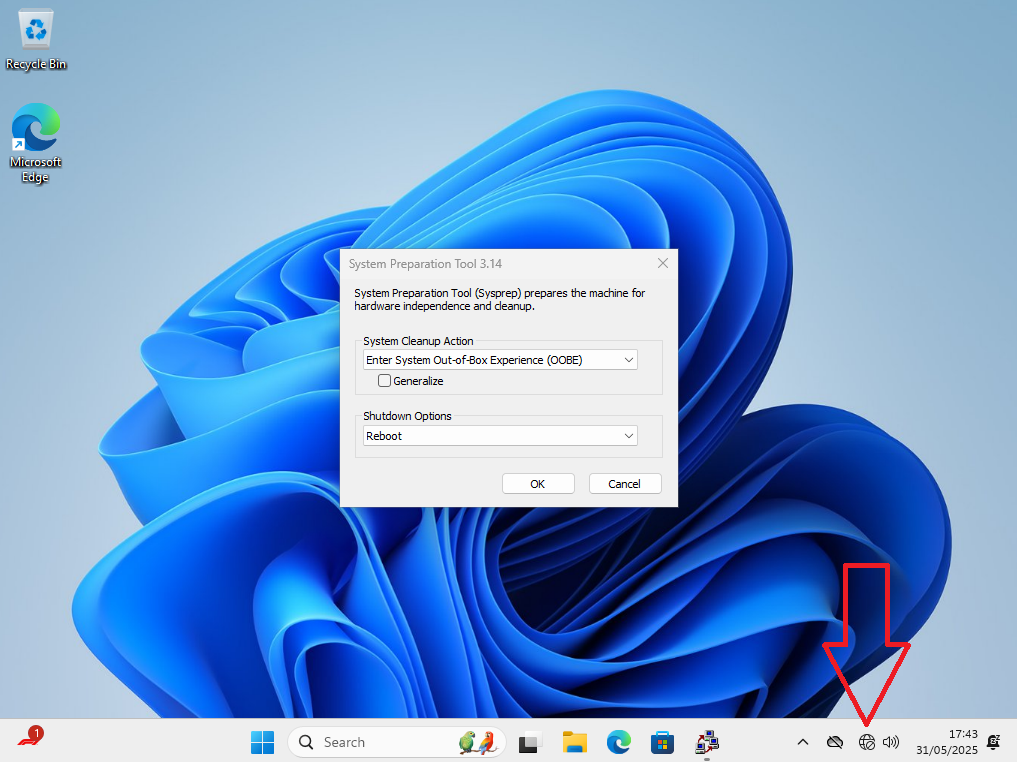
4. Click on the icon of a Globe in the bottom right corner of the screen.
5. A list of wireless networks will be shown. Click on your home wireless, then enter the password to connect to it.
6. Once connected, run Microsoft Edge.
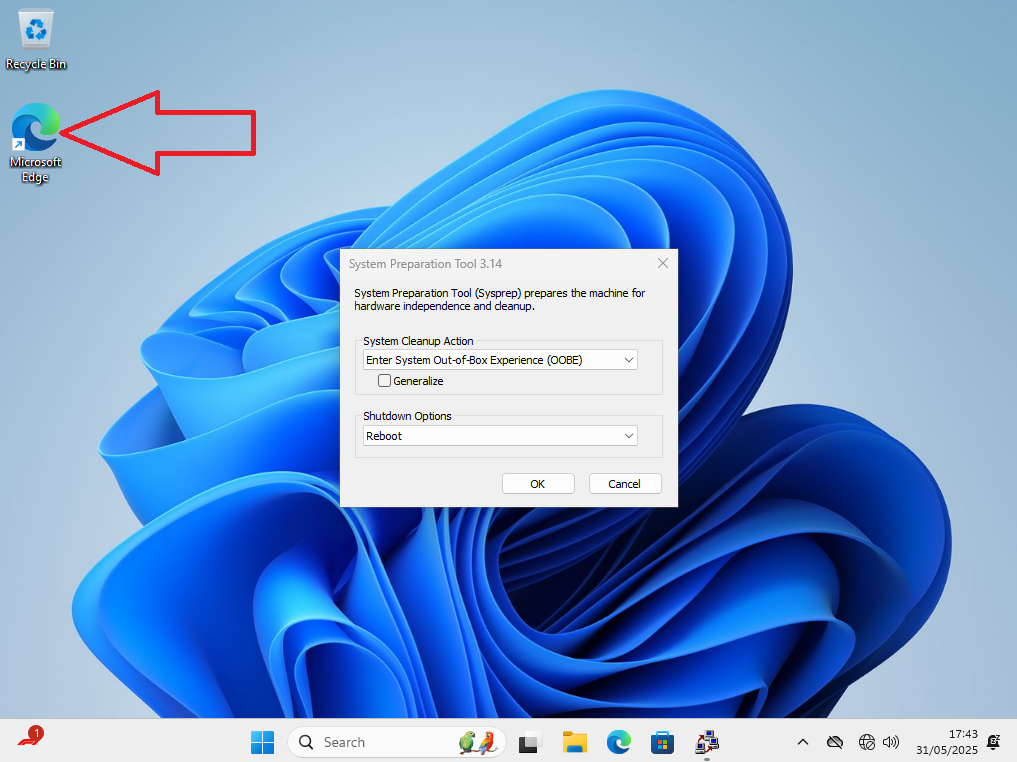
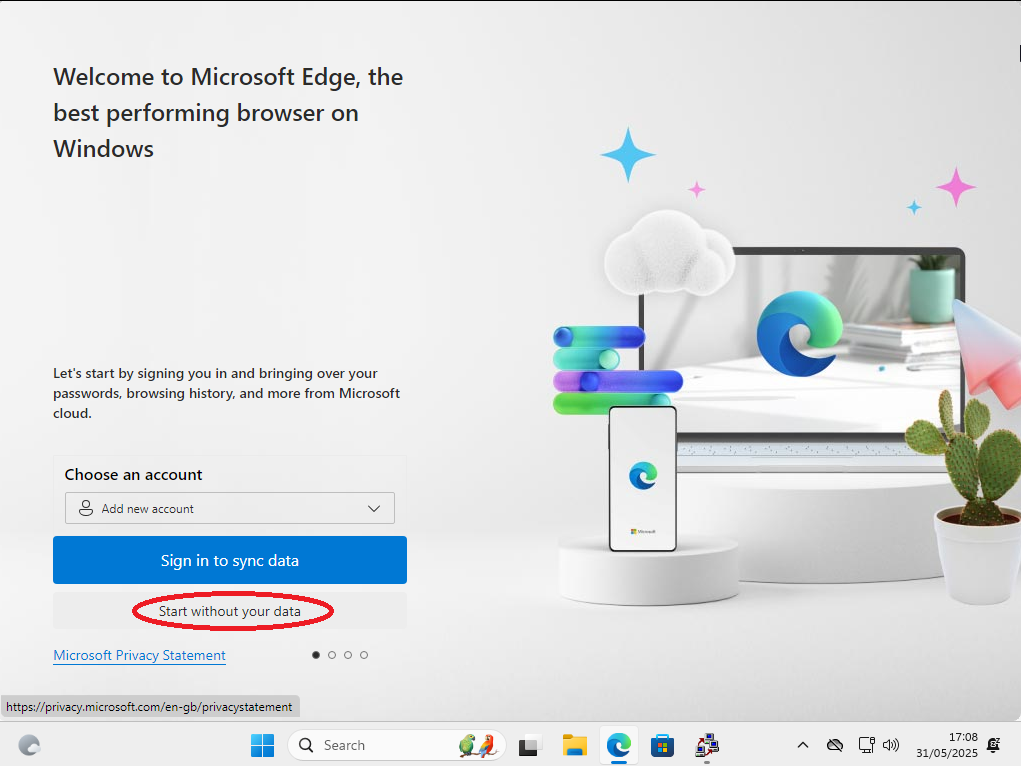
7. You will be prompted with a some questions on a few different screens. Tell it to 'Start without your data', then 'Don't allow', then 'Continue without Google data', finally 'Don't allow'.
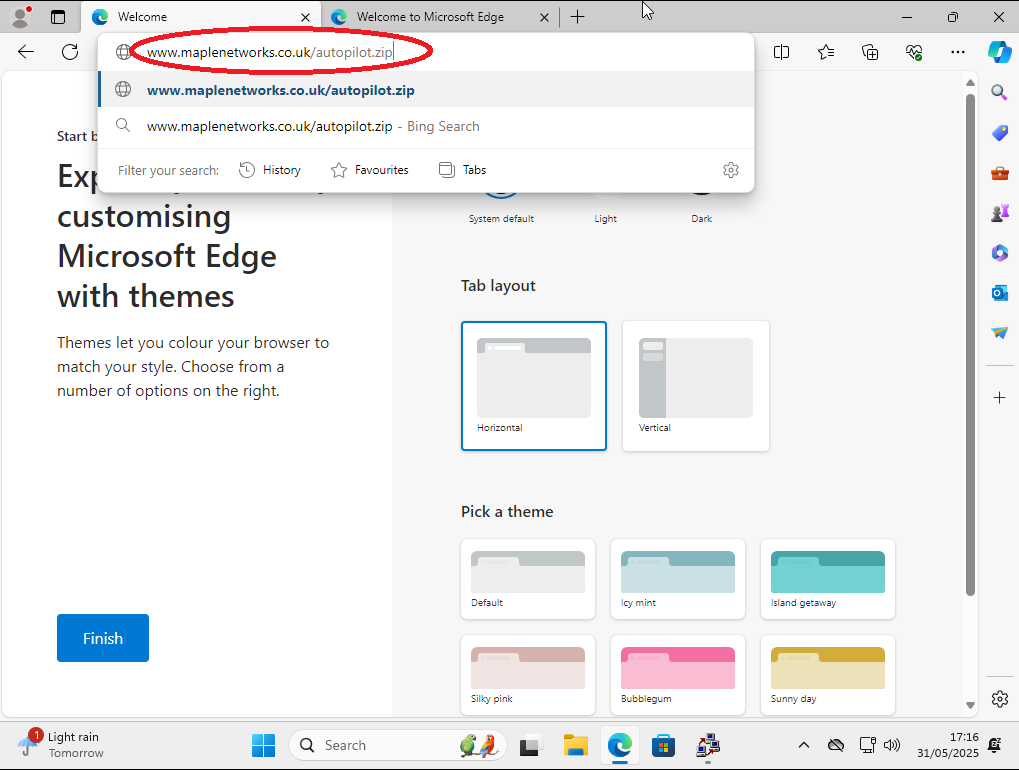
8. When it looks like the below, type in the address bar at the top 'www.maple-networks.com/autopilot.zip', then press the 'Enter' key on the keyboard.
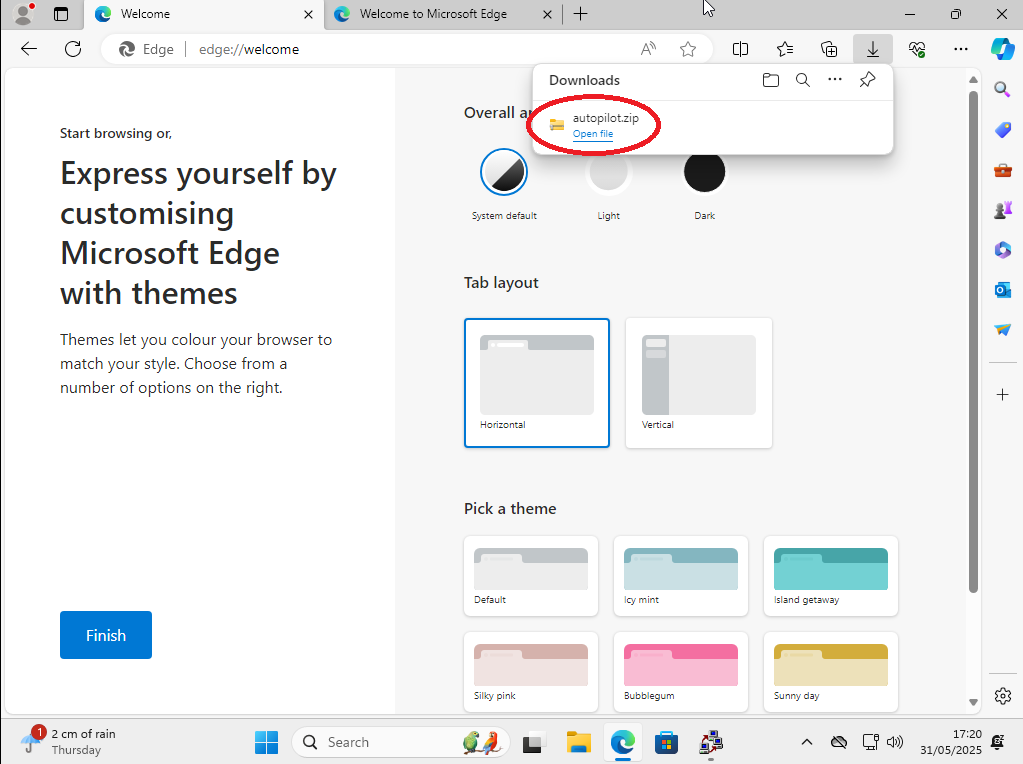
9. A file will start to download. Once complete, it will look like the below. Click on the icon of the folder, to go to the file.
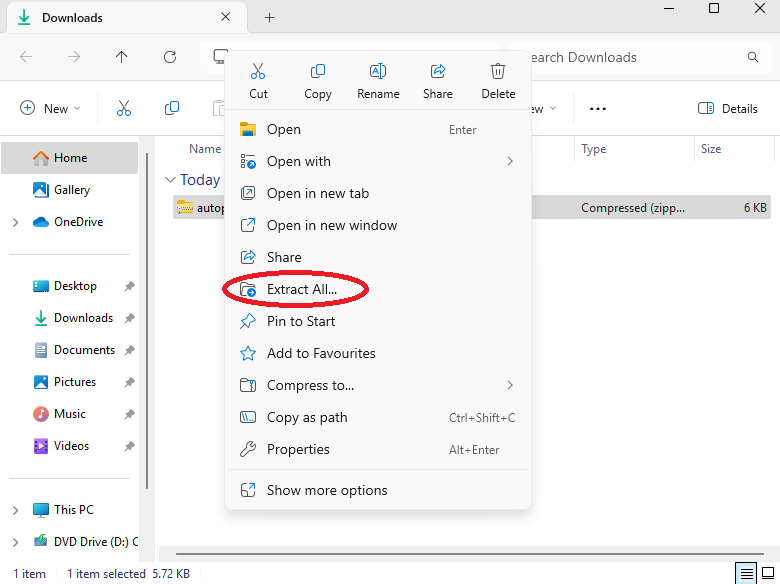
10.Right click on the file 'autopilot.zip', then select 'Extract All...'
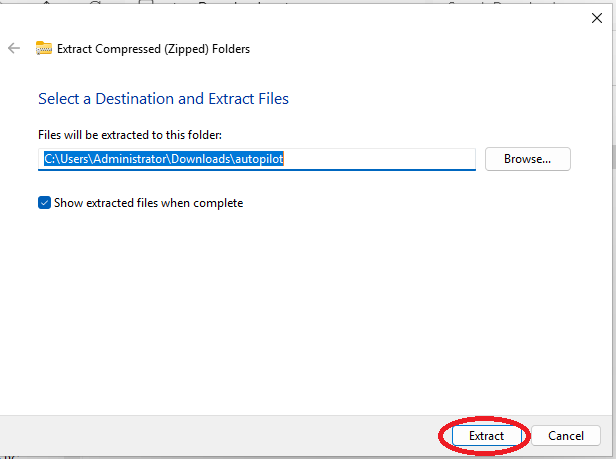
11. Click on 'Extract'.
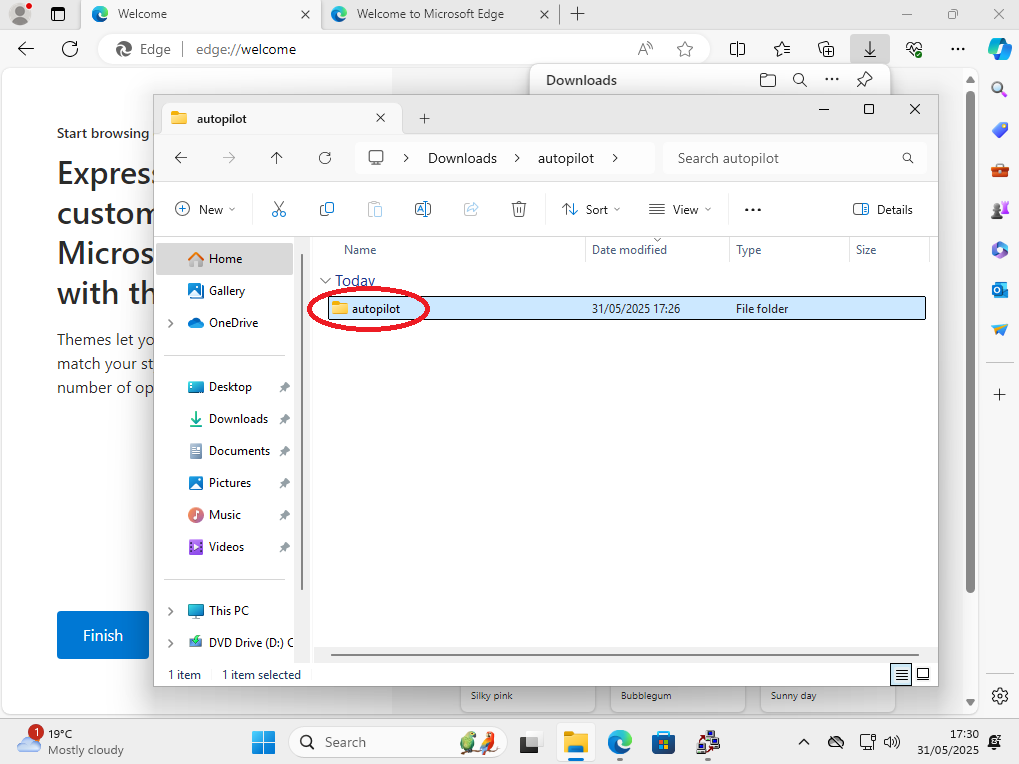
12. Double click on the folder 'autopilot' to open it.
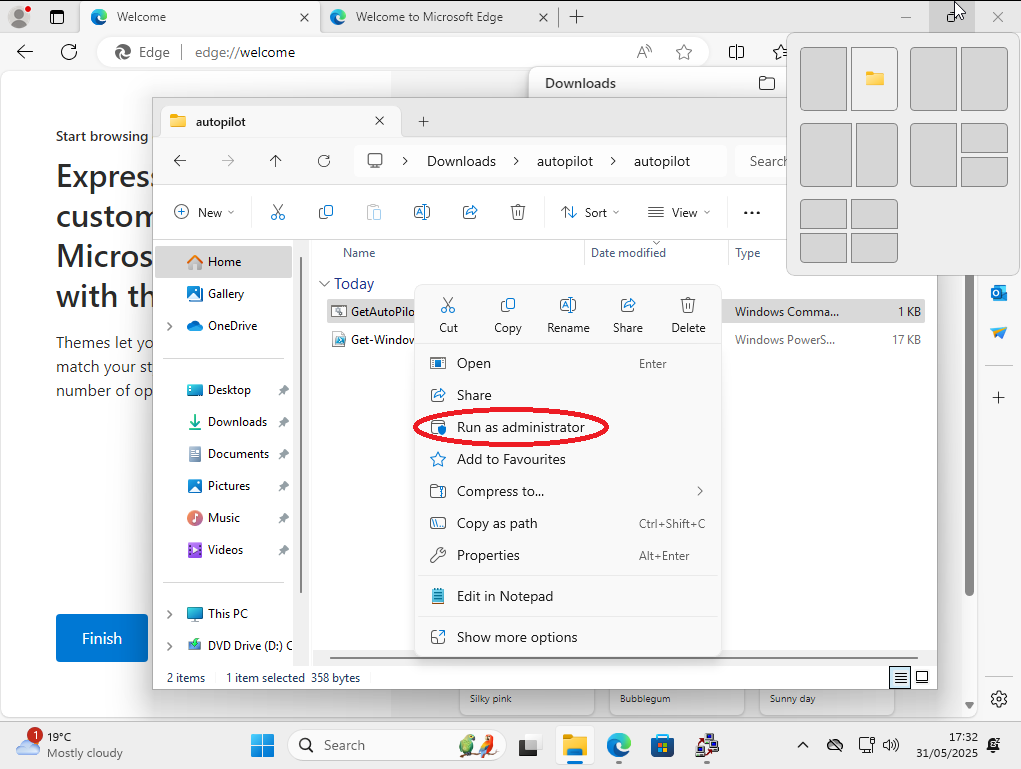
13. Right click on the file 'GetAutoPilot', then select 'Run as administrator'.
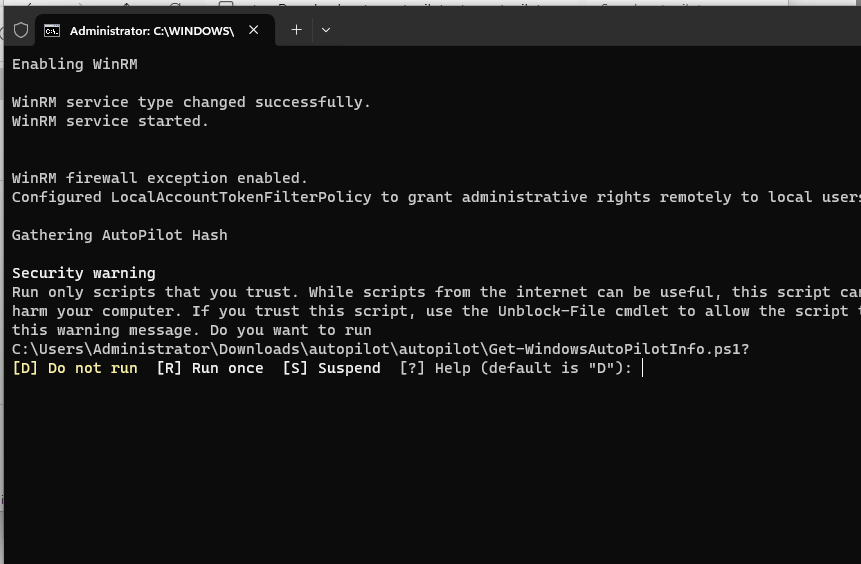
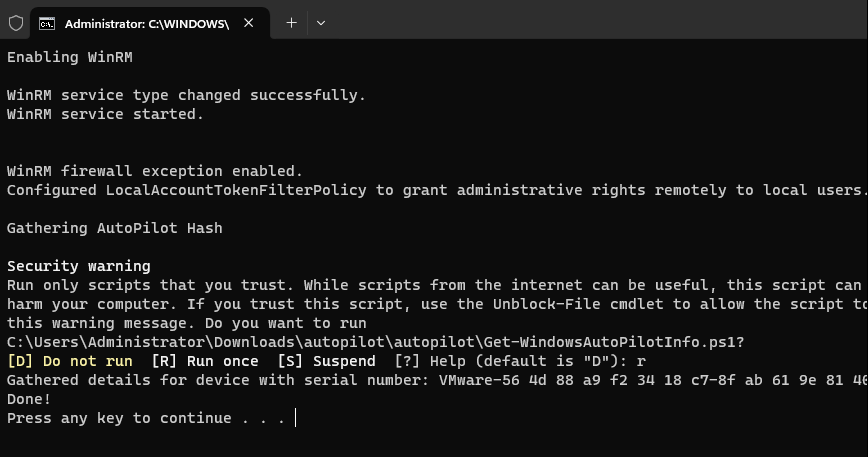
14. A window will appear. If it brings up a security warning like the below image where it asks for approval to run the script, press 'R', then press the 'Enter' key.
15.When in the window it shows 'Done! Press any key to continue ...', press a key on the keyboard. The window will then disappear.
16. A new file will be shown called 'compHash.csv'. This file needs to be emailed to Internal IT (Alan Frost).
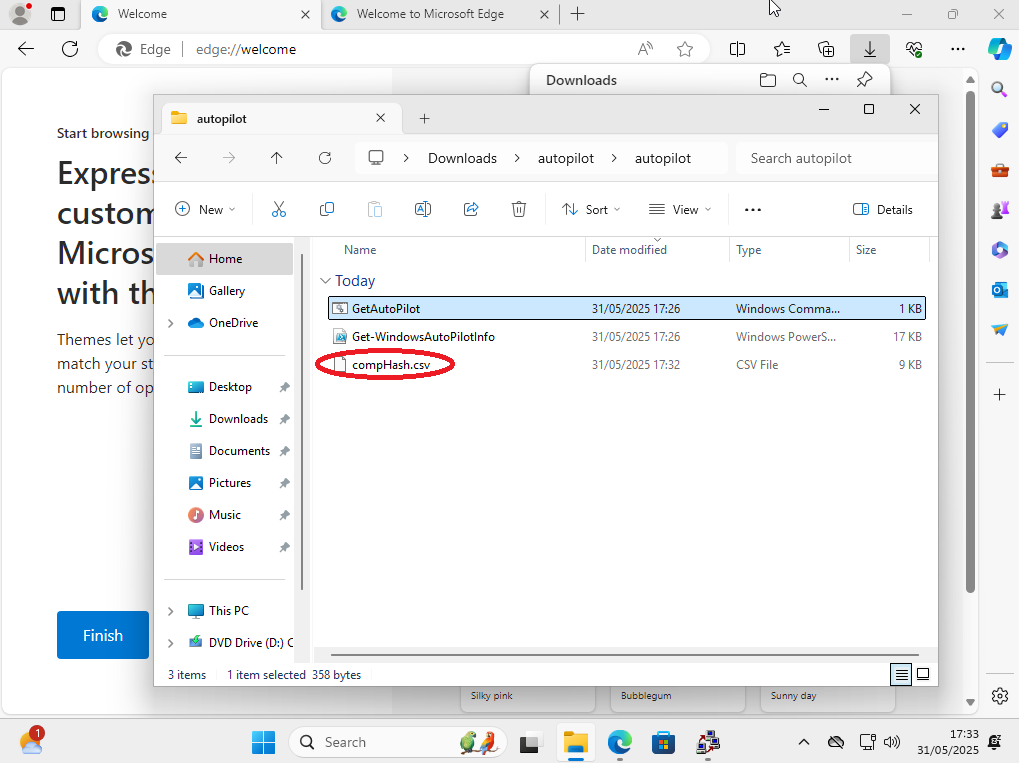
17. Switch back to Microsoft Edge, navigate & login to your personal email account (Gmail, Hotmail for example). Create a new email to Alan Frost (afrost@maple-networks.com), then attach the Hash file (compHash.csv). The file will be in your 'Downloads' area, inside a folder called 'autopilot'.
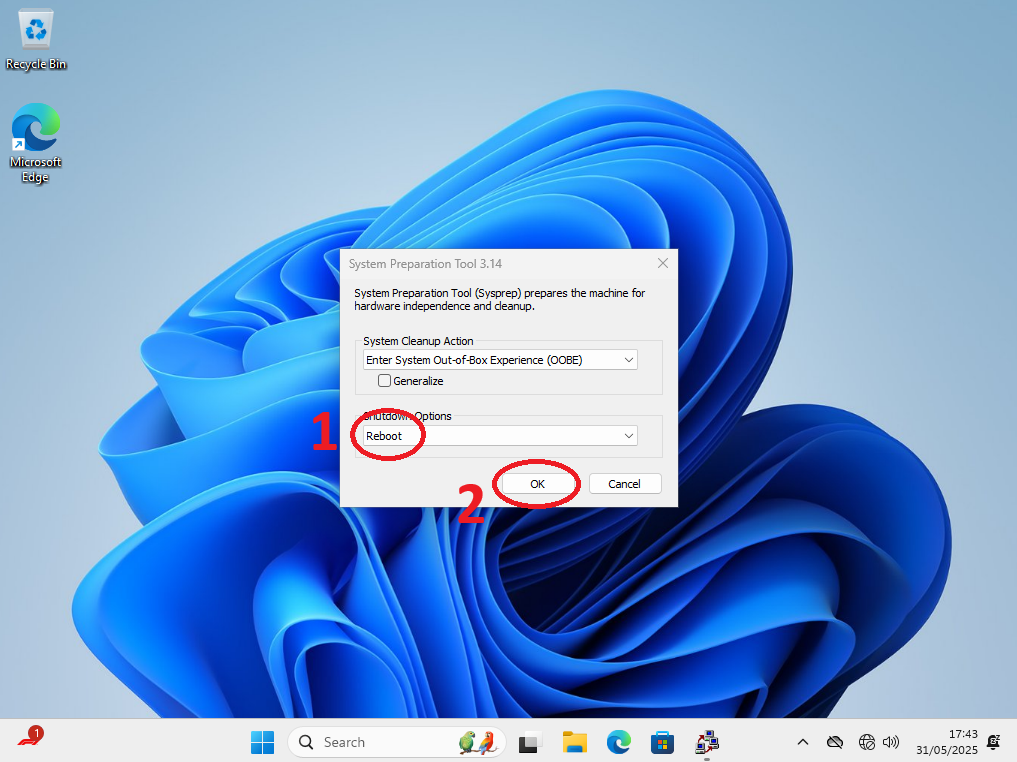
18. Once the email has been sent, close Edge, and return to the desktop. In the middle of the screen will be 'System Preparation Tool'. Change the 'Shutdown Options' to 'Shutdown', then click on 'OK'. This will shut down the computer.
Once Alan receives the file, he will import it to our account. Please wait until Alan has confirmed that the file has been imported before continuing with any other steps.